
Table of Contents
ASP.NET Core 10 passkeys can be added to existing Identity accounts without forcing an immediate passwordless migration. The safest approach is to keep current sign-in and recovery methods, let authenticated users enroll passkeys, configure the relying-party domain explicitly, and remove fallback credentials only after recovery and cross-device tests pass.
The built-in implementation covers common ASP.NET Core Identity authentication scenarios: adding a passkey to an existing account, creating an account with a passkey, and passwordless sign-in. It is not a general-purpose WebAuthn library. Only the Blazor Web App template includes ready-made passkey UI, attestation statements are not validated by default, and Identity treats passkeys as primary authentication rather than built-in 2FA.
Decide Whether the Built-In Passkey Scope Fits
ASP.NET Core Identity passkeys are a good fit when the application:
- Uses ASP.NET Core Identity as its account store.
- Needs passkey enrollment and passwordless sign-in.
- Can run on .NET 10 or later.
- Uses HTTPS in production.
- Can maintain a recovery method during rollout.
- Does not require advanced device attestation or a complete WebAuthn platform.
The framework APIs are available beyond the Blazor template, but other UI stacks require custom enrollment, sign-in, and credential-management interfaces. Do not assume that upgrading an MVC or Razor Pages application automatically adds those pages.
Choose a more complete WebAuthn implementation when the product requires strict authenticator certification, complex attestation trust policies, tenant-specific protocol behavior, or WebAuthn features outside Identity authentication.
Roll Out Passkeys Without Locking Out Existing Users
Treat passkey adoption as an account-state migration, not a login-page replacement.
| Account state | Available methods | Promotion requirement |
|---|---|---|
| Existing account | Password or external provider | No passkey required |
| Passkey enrolled | Passkey plus existing methods | Successful enrollment and sign-in |
| Passkey preferred | Passkey shown first; fallback retained | Recovery tested on another device |
| Passkey-only | Passkeys plus a dedicated recovery process | Multiple credentials, proven recovery, and operational support |
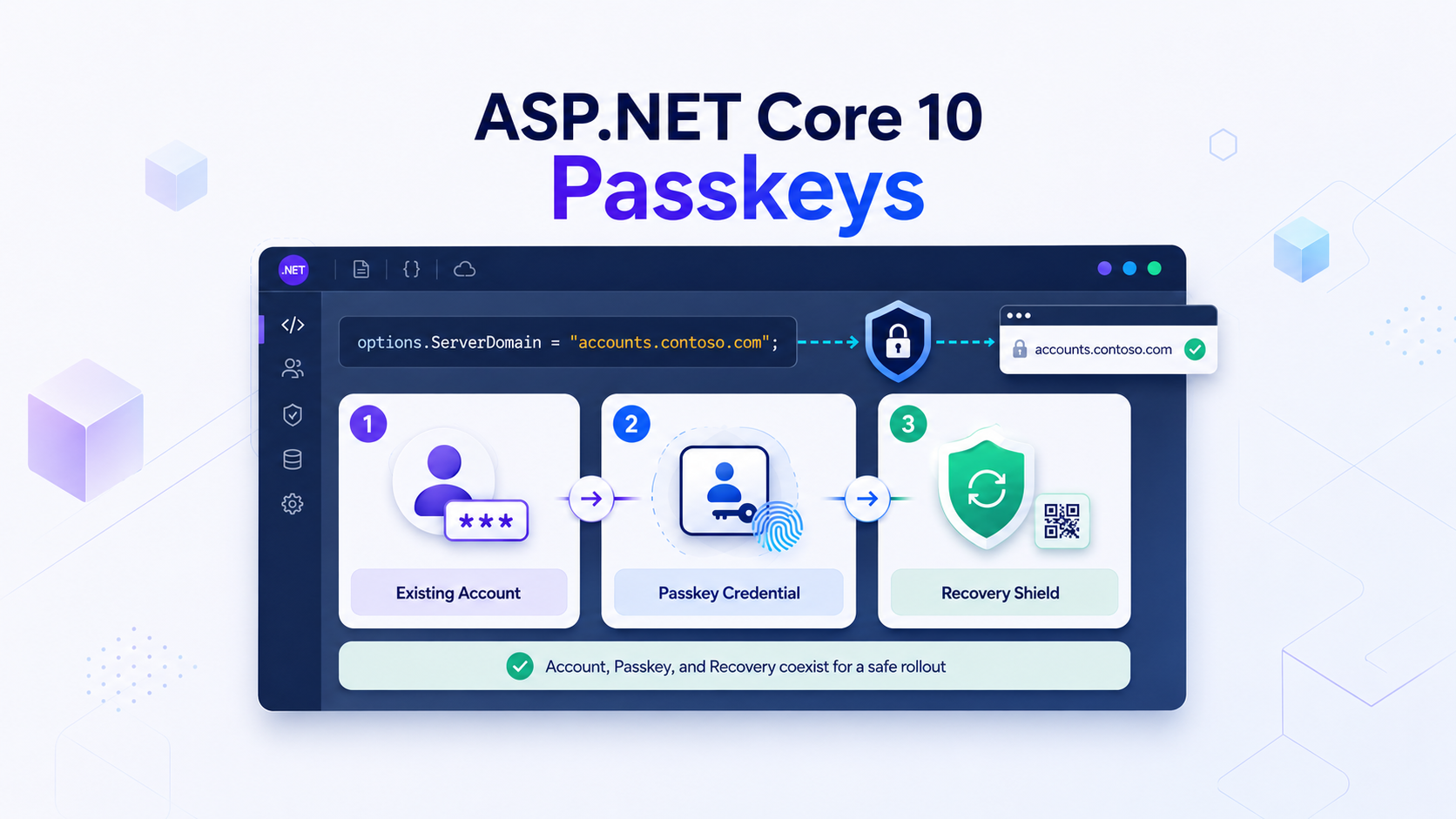
Start with an opt-in pilot. Allow selected users to register a passkey while their current credentials remain active. Verify enrollment, sign-out, passkey sign-in, fallback sign-in, and recovery before expanding the feature.
Making the passkey button more prominent is reversible. Removing passwords is not. A successful sign-in on one laptop does not prove that the user can recover after losing that device.
Enable Identity Schema Version 3
An existing Blazor Web App must use Identity schema version 3 to store passkey data. Update the application’s existing Identity registration instead of adding a second registration block:
builder.Services
    .AddIdentityCore<ApplicationUser>(options =>
    {
        options.SignIn.RequireConfirmedAccount = true;
        options.Stores.SchemaVersion = IdentitySchemaVersions.Version3;
    })
    .AddEntityFrameworkStores<ApplicationDbContext>()
    .AddSignInManager()
    .AddDefaultTokenProviders();
Create and apply a database migration:
dotnet ef migrations add AddPasskeySupport
dotnet ef database update
Inspect the generated migration before production deployment. Apply it first in a staging environment that uses the same database provider and migration process as production.
The schema change is only the storage foundation. It does not add passkey pages to an older application or prove that recovery and domain configuration are correct.
Configure ASP.NET Core 10 Passkeys for the Correct Domain
The relying-party ID determines where a passkey can be used. If ServerDomain is not configured, ASP.NET Core derives it from the request host. That makes host-header validation part of the authentication boundary.
Configure a stable production domain explicitly:
builder.Services.Configure<IdentityPasskeyOptions>(options =>
{
    options.ServerDomain = "accounts.contoso.com";
    options.UserVerificationRequirement = "required";
    options.ResidentKeyRequirement = "preferred";
    options.AuthenticatorTimeout = TimeSpan.FromMinutes(3);
});
Replace the sample domain with the application’s real relying-party domain. Do not use an environment-specific hostname without considering what happens when the application moves between hosts.
A passkey registered for one relying-party ID will not authenticate against an unrelated domain. Changing ServerDomain after rollout can therefore lock users out of their registered credentials.
The domain boundary also includes subdomains. If credentials are scoped to contoso.com, untrusted applications hosted below that domain can become relevant to the security model. Use a narrower domain when possible. Applications that need stricter origin rules can configure custom origin validation, but that logic must be tested carefully.
The hosting layer must reject unexpected host headers. Review Kestrel, IIS, reverse-proxy, ingress, and load-balancer settings rather than relying only on application code.
Require HTTPS and Preserve Data Protection Keys
WebAuthn operations require a secure context, and the Identity flow uses protected temporary state between the request that creates a challenge and the request that returns the credential.
A typical production pipeline should enforce HTTPS and HSTS:
if (!app.Environment.IsDevelopment())
{
    app.UseHsts();
}

app.UseHttpsRedirection();
When the application runs on multiple instances, configure ASP.NET Core Data Protection so every instance can read the same protected authentication state. Persist the key ring and protect it appropriately. A deployment that silently replaces Data Protection keys can interrupt authentication flows and invalidate other Identity cookies.
Also verify forwarded headers when TLS terminates at a reverse proxy. The application must correctly understand the original scheme and host without trusting forwarded values from arbitrary clients.
Treat Enrollment as Credential Management
Adding a passkey grants a new method of signing in to an account. Enrollment should therefore require an authenticated user and, for sensitive applications, a recent authentication check.
The normal server-side flow uses SignInManager to create options, verify the returned credential, and preserve temporary state securely:
var optionsJson =
    await signInManager.MakePasskeyCreationOptionsAsync(new()
    {
        Id = await userManager.GetUserIdAsync(user),
        Name = await userManager.GetUserNameAsync(user) ?? "User",
        DisplayName = await userManager.GetUserNameAsync(user) ?? "User"
    });
After the browser completes navigator.credentials.create(), verify the returned credential before storing it:
var attestationResult =
    await signInManager.PerformPasskeyAttestationAsync(credentialJson);

if (!attestationResult.Succeeded)
{
    return Results.BadRequest(attestationResult.Failure.Message);
}

var addResult = await userManager.AddOrUpdatePasskeyAsync(
    user,
    attestationResult.Passkey);

if (!addResult.Succeeded)
{
    return Results.BadRequest("The passkey could not be stored.");
}
Prefer the SignInManager methods unless the application has a requirement they cannot support. Calling IPasskeyHandler<TUser> directly makes the application responsible for protecting and binding the temporary attestation state. Incorrect state handling can allow a credential to be attached to the wrong account.
Credential-management pages should also:
- Limit the number of passkeys per account.
- Limit friendly-name length.
- Show recognizable credential names.
- Allow users to rename and remove credentials.
- Record security events for additions and removals.
- Avoid exposing unnecessary authenticator details.
- Require reauthentication before destructive changes.
The Blazor template enforces registration and display-name limits at the application level. Custom UIs must implement equivalent boundaries.
Keep a Recovery Method Until Recovery Is Proven
The default Blazor approach keeps a password or external provider as a backup method. That is a safer starting point for an existing application.
Before considering passkey-only accounts, define what happens when:
- A device is lost or replaced.
- A synchronized passkey is unavailable.
- A security key is damaged.
- The user changes password managers.
- The registered domain changes.
- An administrator revokes a credential.
- The browser supports WebAuthn but the selected password manager fails.
Possible recovery controls include verified email recovery, recovery codes, multiple registered passkeys, and a carefully designed support-assisted process. Each option has its own account-takeover risk.
ASP.NET Core stores an IsBackedUp flag with passkey information. It can help identify credentials that might not be synchronized, but it should not be treated as proof that recovery will succeed. Ask users to register an additional credential and test the actual recovery path.
Do not remove a working fallback immediately after the first successful enrollment. Require at least one later passkey sign-in and a completed recovery check.
Do Not Present Passkeys as Built-In 2FA
A passkey may involve possession of a device plus biometric or PIN verification, but ASP.NET Core Identity’s built-in passkey flow treats it as primary authentication. It does not automatically create an Identity 2FA step after password authentication.
Do not advertise “password plus passkey 2FA” unless the application implements and verifies that separate flow deliberately. Applications needing step-up authentication for administrative or financial operations must design that policy explicitly.
The framework also does not validate authenticator attestation statements by default. That is suitable for many consumer authentication scenarios, but it does not prove that a credential came from an approved hardware model.
Enterprise applications that require authenticator assurance need a maintained trust model and custom attestation validation. Avoid implementing a callback that simply returns true; that provides the appearance of validation without any security value.
Test the Rollout Against Real Failure Modes
Unit tests alone cannot validate browser, authenticator, proxy, and domain behavior. Use a staging environment with production-like hosts and TLS.
Your test matrix should include:
- Enrolling a passkey on an existing confirmed account.
- Signing out and signing in with the new passkey.
- Signing in with the retained fallback method.
- Recovering the account from another device.
- Registering and removing multiple credentials.
- Cancelling browser and authenticator prompts.
- Rejecting expired, replayed, or malformed operations.
- Verifying production and staging relying-party domains separately.
- Rejecting unexpected host headers and origins.
- Testing supported browsers, operating systems, and password managers.
- Confirming limits for credential count and display-name length.
- Verifying behavior after an application restart and multi-instance deployment.
Some password managers may throw TypeError: Illegal invocation when serializing PublicKeyCredential. Microsoft documents a temporary manual-serialization workaround, but it should not become permanent compatibility code without continued testing. Track the affected password manager and remove the workaround when it correctly implements PublicKeyCredential.toJSON().
Production Rollout Checklist
Before enabling enrollment:
- Upgrade the application to .NET 10.
- Update Identity to schema version 3.
- Review and apply the database migration.
- Configure a stable
ServerDomain. - Validate host headers and forwarded headers.
- Enforce HTTPS and HSTS.
- Persist Data Protection keys across instances.
- Set credential-count and name-length limits.
- Keep an existing recovery method.
Before expanding beyond the pilot:
- Test enrollment and sign-in across supported platforms.
- Test fallback and account recovery.
- Verify multiple-passkey management.
- Review security logging and administrative revocation.
- Confirm that no UI describes the feature as built-in 2FA.
- Confirm whether default attestation behavior meets the product’s requirements.
- Document the domain-change and incident-response procedures.
Only consider passkey-only accounts after recovery works under realistic device-loss conditions. The correct success metric is not the number of enrolled users; it is the number who can authenticate and recover without creating a weaker account-takeover path.