
Table of Contents
.NET security updates are usually straightforward to install, but verifying that the patched runtime actually reached production takes a little more work. At that point it is tempting to consider the job done.
In production, however, there is one more question worth answering: what version is the application actually running?
This matters because a .NET application is rarely just the code in your repository. The runtime may come from the server, a container base image, or the published application itself. NuGet packages have their own versions, and a successful deployment does not guarantee that every production instance was replaced.
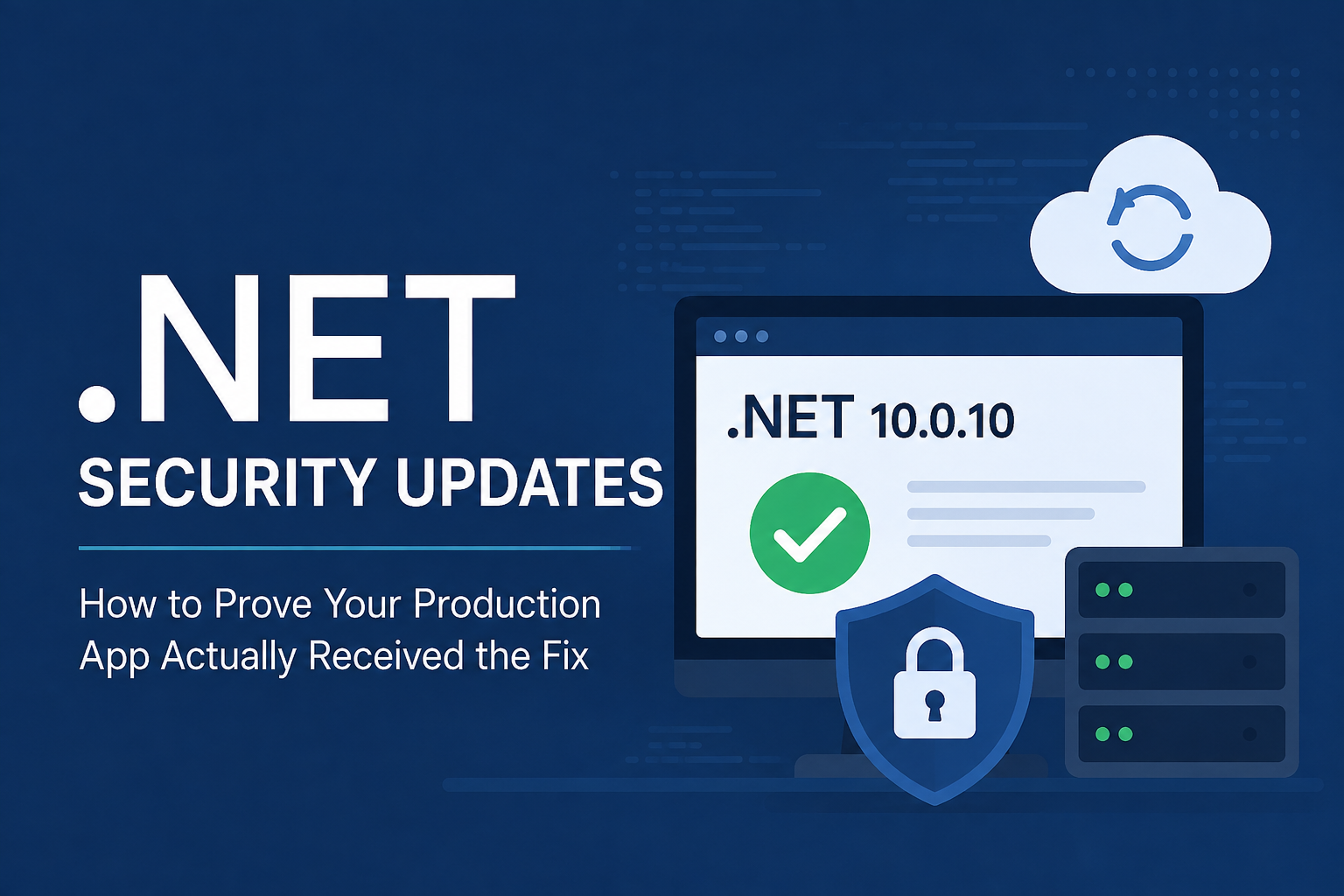
The July 14, 2026 servicing release is a good example. Microsoft released .NET 10.0.10, .NET 9.0.18, and .NET 8.0.29, with security and non-security fixes. If I were responsible for applying that update to a production service, I would not use the SDK version on my development machine as proof that the service was patched. I would verify the artifact and the environment where the application is actually running.
This article walks through that process.
Start With the Runtime You Expect
Before changing the application, record the runtime version you expect to see after deployment. For a .NET 10 service receiving the July 2026 update, that would be:
Expected production runtime: .NET 10.0.10
Having an exact target makes the rest of the verification much easier. “We installed the latest update” is difficult to audit later; “production was verified on .NET 10.0.10” is specific.
One common source of confusion here is the difference between the SDK and the runtime. Running this command:
dotnet --version
might return:
10.0.302
That is the selected SDK. It tells you about the toolchain being used for commands such as build, test, and publish, but it does not tell you which shared runtime a framework-dependent production application is using.
To inspect the installed runtimes, use:
dotnet --list-runtimes
On a machine with the July .NET 10 servicing update, you might see:
Microsoft.AspNetCore.App 10.0.10
Microsoft.NETCore.App 10.0.10
You can inspect the installed SDKs separately when you need to understand the build environment:
dotnet --list-sdks
The distinction sounds basic, but it is important during an incident. Updating Visual Studio or installing a new SDK on a build machine says very little about a framework-dependent application running on another server.
Framework-dependent and self-contained deployments behave differently
You also need to know how the application is published. A framework-dependent application relies on a compatible runtime provided by the target environment. A typical publish can be as simple as:
dotnet publish -c Release
A self-contained application is different because the .NET runtime is included in the published output. For example:
dotnet publish \
  -c Release \
  -r linux-x64 \
  --self-contained true
That difference changes how you apply a runtime security patch. Updating the global .NET installation on a server can update the runtime available to a framework-dependent application, but it does not replace the runtime already packaged inside an old self-contained deployment.
For a self-contained application, Microsoft documents that the application must be republished to obtain a new runtime patch. In practice, I would treat the publish output as a new artifact: rebuild it with the serviced SDK/runtime available, run the normal tests, deploy it, and then verify the running process.
Verify the Runtime Where the Application Runs
Once the new release is deployed, I want evidence from the application environment rather than from the developer workstation.
If you have shell access to the host or container, dotnet --list-runtimes is useful for framework-dependent deployments. It shows which shared runtimes are installed in that environment. For containers, the same check can be run inside the application container:
docker exec my-api dotnet --list-runtimes
For a .NET 10 ASP.NET Core application patched with the July update, the relevant entries should show 10.0.10.
There is another useful check that comes directly from the running process. .NET exposes the framework description through RuntimeInformation.FrameworkDescription:
using System.Runtime.InteropServices;

Console.WriteLine(
    RuntimeInformation.FrameworkDescription);
A process running on the serviced runtime can report:
.NET 10.0.10
For an ASP.NET Core service, logging this value during startup is a simple option that does not require a public diagnostic endpoint:
using System.Runtime.InteropServices;

var builder = WebApplication.CreateBuilder(args);

var app = builder.Build();

app.Logger.LogInformation(
    "Starting application on {Framework}",
    RuntimeInformation.FrameworkDescription);

app.Run();
After deployment, the startup log gives you evidence from the process that actually started in that environment.
Some teams prefer an internal diagnostics endpoint because deployment automation can query it. That can work as well:
using System.Runtime.InteropServices;

app.MapGet("/internal/runtime", () => new
{
    Framework = RuntimeInformation.FrameworkDescription
});
A response might look like:
{
  "framework": ".NET 10.0.10"
}
I would not expose that endpoint publicly just to make verification convenient. If you use one, protect it with the same controls you use for other operational endpoints, such as internal networking or authentication. For many applications, writing the runtime version to structured startup logs is enough.
Check NuGet Packages as a Separate Step
Runtime servicing and NuGet package servicing are related security concerns, but they are not the same thing. Installing a patched .NET runtime does not update every package referenced by your application.
With the .NET 10 SDK, you can list packages with known vulnerabilities using:
dotnet package list --vulnerable
The command syntax changed in .NET 10. If your build environment uses .NET 9 SDK or earlier, the equivalent verb-first form is:
dotnet list package --vulnerable
For an application security check, I would normally include transitive dependencies:
dotnet package list \
  --vulnerable \
  --include-transitive
The reason is straightforward. Your project may reference PackageA, which depends on PackageB, which in turn depends on a vulnerable PackageC. Looking only at the package references written directly in the project file can hide that part of the dependency graph.
For CI, JSON output is more useful than console output:
dotnet package list \
  --vulnerable \
  --include-transitive \
  --format json > dependency-report.json
That gives the pipeline an artifact that can be retained with the build or processed by another step. A simple pipeline might restore the project, create the dependency report, then continue with the normal build and tests:
dotnet restore

dotnet package list \
  --vulnerable \
  --include-transitive \
  --format json > dependency-report.json

dotnet build -c Release --no-restore
dotnet test -c Release --no-build
With .NET 10, dotnet package list can restore automatically when necessary. I still prefer an explicit restore in a CI example because it makes the build sequence easier to understand and gives you more control over where restore happens.
There is also a limit to what this check proves. A clean vulnerability report means the configured audit sources did not report known vulnerabilities for the packages being checked. It is useful evidence, but it should not be interpreted as proof that no unknown vulnerability exists.
Containers Need to Be Rebuilt and Redeployed
Containerized applications introduce another place where an update can appear to be complete when it is not.
Consider a typical ASP.NET Core runtime image:
FROM mcr.microsoft.com/dotnet/aspnet:10.0

WORKDIR /app
COPY ./publish .

ENTRYPOINT ["dotnet", "MyApp.dll"]
When Microsoft publishes a serviced aspnet:10.0 image, an application image that you built last week does not change. The Dockerfile in Git may still look correct, but the existing image in your registry contains the layers that were present when it was built.
To consume the new base image, rebuild the application image and push the new result through your normal deployment process.
This is why I would not use the Dockerfile itself as evidence that production is patched. It tells me what a new build is configured to use; it does not tell me when the currently running image was built or which exact image production pulled.
For production deployments, keeping the immutable image digest makes this much easier to trace. Instead of recording only:
orders-api:production
record the digest associated with the release:
registry.example.com/orders-api@sha256:...
A mutable tag is convenient for humans, but the digest identifies the actual image. During a security update, being able to connect a Git commit to a built image and then to the image running in production removes a lot of ambiguity.
If your environment allows commands inside the container, you can combine that artifact information with a runtime check:
docker exec my-api dotnet --list-runtimes
Now you have two different pieces of evidence: which image was deployed and which runtime is available inside it.
Make Sure the Whole Production Deployment Was Updated
Building and pushing the correct artifact is only part of the deployment. The final check is whether production actually moved to it.
This becomes especially important with rolling deployments. Suppose an application runs on five instances and three have restarted on .NET 10.0.10, while two older instances are still serving traffic on .NET 10.0.9. Calling a runtime endpoint once may hit one of the updated instances and make the deployment look complete even though it is not.
How you verify the whole fleet depends on the platform. In Kubernetes you might inspect every pod in the deployment; on VMs you may need to check each host; in a multi-region setup you need to make sure every region that receives traffic has completed the rollout. The exact commands vary, but the principle is the same: verify all instances that can serve production traffic, not a single successful request.
Once the rollout is complete, run the same application checks you would use for any production deployment. A security patch does not remove the need for smoke testing.
For a web service, a basic health check could be:
curl --fail https://example.com/health
I would also test at least one important application workflow if the environment allows it. A healthy process does not necessarily mean authentication, database access, queues, background workers, or external integrations are working correctly.
After that, watch the normal operational signals: exceptions, HTTP 5xx responses, restarts, latency, CPU and memory, database failures, and errors from external dependencies. Version verification tells you that the patch arrived; application monitoring tells you whether the release remains healthy under real traffic.
Keep a Small Patch Record
For an important production service, I like to keep a short record of the evidence gathered during the deployment. It does not need to become a large compliance exercise.
Something like this is enough for many teams:
Application:
Orders API

Source commit:
a12bc34

Expected runtime:
.NET 10.0.10

NuGet vulnerability check:
Completed

Container image:
registry.example.com/orders-api@sha256:...

Environment:
Production

Deployment completed:
2026-07-15 14:32 UTC

Runtime verified:
.NET 10.0.10

Smoke tests:
Passed

Post-deployment monitoring:
Healthy
The useful part is not the format. It is being able to answer a question several weeks later without relying on someone’s memory.
You should also keep the normal rollback path available. For a containerized service, that usually means knowing the previous image digest and having a tested way to redeploy it. There is an obvious security trade-off here because the previous image may contain the vulnerability you just patched. Rollback should therefore be an emergency recovery option while you diagnose the problem, not a reason to remain on the vulnerable release.
.NET Security Updates: A Production Checklist You Can Reuse
For the next .NET security update, I would use the following sequence.
Before deployment
- Read the Microsoft servicing information and identify the affected version.
- Record the exact runtime version you expect after the update.
- Confirm whether the application is framework-dependent or self-contained.
- Check the artifact that is currently running in production.
During the build
- Restore from the expected package sources.
- Check direct and transitive NuGet dependencies for known vulnerabilities.
- Build and test the application.
- Republish self-contained applications.
- Rebuild container images so they consume the serviced base image.
- Record the new artifact or container digest.
During deployment
- Deploy the new artifact through the normal release process.
- Verify that every production instance completed the rollout.
- Confirm the runtime from the host, container, application logs, or a protected diagnostic endpoint.
- Run health checks and at least one useful smoke test.
After deployment
- Monitor errors, exceptions, restarts, latency, and dependencies.
- Save the runtime version and artifact identity with the release record.
- Keep the rollback path available until the deployment has proved stable.
This process is intentionally simple. The goal is not to add a new security platform around every .NET update. It is to close the gap between “we installed something” and “we know what is running.”
What I Would Accept as Proof
When reviewing a security deployment, I would want to see evidence from more than one layer. For example, a package audit from CI, the immutable identity of the deployed artifact, confirmation that all production instances completed the rollout, and a runtime value obtained from the running environment together form a useful chain of evidence.
By contrast, updating Visual Studio, seeing a green build, finding the patched image in the registry, or checking one production instance are all useful observations, but none of them is sufficient on its own. They describe one part of the release path rather than the final state of the application.
The practical lesson is that .NET patching should follow the artifact all the way to the running workload. Once you know which version you expected, which artifact you built, which artifact you deployed, and which runtime the process is actually using, security servicing becomes much easier to verify.