


A reusable Blazor loading spinner component can make an asynchronous operation visible without repeating loading markup on every page. The original .NET 8 sample in this guide wraps page content, exposes one AwaitTask method, shows a blurred overlay while that task is pending, and removes the overlay when the task completes.
Version note: The repository, screenshots, and video were created with .NET 8 in May 2024. The original implementation is preserved below. This refresh rewrites the explanation and adds production guidance for cancellation, overlapping operations, errors, interaction safety, and accessibility. It does not claim that the historical project was rebuilt or tested on a newer framework.
You can inspect or download the complete project from the original Blazor loading spinner repository.
Table of Contents
How the Blazor Loading Spinner Component Works
The sample separates loading behavior from the page that requests data. DncWrapperComponent owns a Boolean loading flag and an AwaitTask helper. DncWrapper.razor renders the overlay and passes the wrapper instance to descendants through a cascading value. A page receives that instance with [CascadingParameter] and sends its asynchronous task through the helper.
This design is easy to demonstrate because the wrapper controls both the visual state and the task boundary. The important production question is scope: one wrapper instance represents one loading region. If it surrounds the entire layout, all pages share that region. If separate panels need independent progress, each panel needs its own state owner.
Create the Solution and Razor Class Library
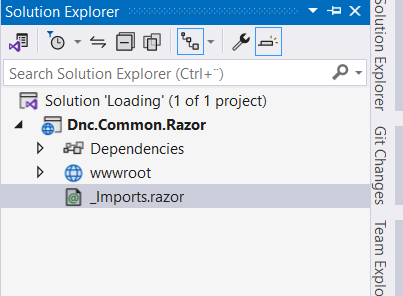
The original solution contains a Razor class library named Dnc.Common.Razor and a Blazor Web App named Dnc.Loading.WebApp. Both target .NET 8. The reusable class library contains a Wrapper folder with the base class, Razor markup, and isolated styles.
Add a project reference from the web app to the class library. The spinner responds to component state changes, so the page must run in an interactive render mode. Static server rendering can produce the initial markup, but it cannot handle the interactive state changes used by this component.
Build the Wrapper State and AwaitTask Method
Create DncWrapperComponent.cs. The code below is the original implementation:
namespace Dnc.Common.Razor.Wrapper
{
    public class DncWrapperComponent:ComponentBase
    {
        [Parameter]
        public RenderFragment ChildContent { get; set; }
        public bool Loading { get; private set; }

        private CancellationTokenSource cancellationTokenSource;
        public async Task<T> AwaitTask<T>(Task<T> task)
        {
            SetLoading(true);

            try
            {
                cancellationTokenSource = new CancellationTokenSource();
                return await task.WaitAsync(cancellationTokenSource.Token);
            }
            catch (TaskCanceledException e)
            {
                e.Data.Add("CanceledTask", "true");
                throw;
            }
            finally
            {
                SetLoading(false);
                cancellationTokenSource = null;
            }
        }
        public void SetLoading(bool loadoing)
        {
            Loading = loadoing;
            StateHasChanged();
        }
    }
}
AwaitTask turns loading on before awaiting the supplied task and turns it off in a finally block. The finally block matters because it runs after success, cancellation, or failure. That prevents a normal exception from leaving the overlay visible forever.
The explicit StateHasChanged() call is preserved. Blazor normally schedules another render after its own lifecycle and event callbacks. Code invoked from an external callback should marshal work back to the renderer with InvokeAsync. Do not call Result, Wait, or similar blocking methods to force asynchronous work to finish, because they can block Blazor’s synchronization context.
Render the Loading Overlay
Create DncWrapper.razor and inherit from the base component:
@inherits DncWrapperComponent

<div class="dnc-wrapper">
    <div class="loading @(Loading ? "show" : "")">
        @if (Loading)
        {
            <div class="dnc-wrapper-spin fa-x3 d-flex justify-content-center align-items-center">
                <div>
                    <i class="fas fa-circle-notch fa-spin"></i>
                    <div>
                        <span>Loading...</span>
                    </div>
                </div>
            </div>
        }
    </div>

    <CascadingValue Value="this">
        @ChildContent
    </CascadingValue>
</div>
The outer element establishes a positioning context. The loading layer is always present, but its visible contents are rendered only while Loading is true. The cascading value makes the current wrapper available to pages and components below it without adding a parameter at every level.
Style the Spinner and Blurred Backdrop
Create DncWrapper.razor.css. The original styles use an absolutely positioned layer, opacity transition, blurred backdrop, and a Font Awesome spinning icon:
.dnc-wrapper {
    position: relative;
    min-height: 50rem;
}

.dnc-wrapper > div.loading {
    z-index: 1001;
    width: 100%;
    height: 0px;
    position: absolute;
    opacity: 0;
    transition: opacity 0.5s;
    text-align: center;
    pointer-events: none;
}

.dnc-wrapper > div.show {
    height: 100%;
    opacity: 1;
    backdrop-filter: blur(5px);
    width: 100%;
    background-color: rgba(255,255,255, 0.7);
}

.dnc-wrapper-spin {
    height: 100%;
    max-height: 60vh;
    margin-top: -1rem;
}

.dnc-wrapper-spin div span {
    padding-left: 0.8rem;
    font-size: 1rem;
    letter-spacing: 0.1rem;
    color: #666 !important;
}

div.loading .fa-spin {
    font-size: 5rem !important;
    color: #b1b1b1 !important;
}
The visual result is suitable for the historical demo, but these values are not universal layout defaults. A fixed min-height: 50rem can create excess space on smaller screens, and max-height: 60vh can place the spinner away from the active content. Adjust the region dimensions against the actual application layout.
Configure the Blazor Web App
The historical App.razor loads Font Awesome 6.5.2, Bootstrap 5.3.2, and configures interactive server rendering with prerendering disabled:
<!DOCTYPE html>
<html lang="en">
<head>
    // Removed code for brevity
    <link rel="stylesheet" href="https://cdnjs.cloudflare.com/ajax/libs/font-awesome/6.5.2/css/fontawesome.min.css"/>
    <link rel="stylesheet" href="https://cdn.jsdelivr.net/npm/bootstrap@5.3.2/dist/css/bootstrap.min.css">
    <script src="https://cdnjs.cloudflare.com/ajax/libs/font-awesome/6.5.2/js/all.min.js"></script>
    <HeadOutlet @rendermode="new InteractiveServerRenderMode(prerender:false)" />
</head>
<body>
    <Routes @rendermode="new InteractiveServerRenderMode(prerender:false)" />
    <script src="_framework/blazor.web.js"></script>
</body>
</html>
Disabling prerendering is part of this sample, not a general recommendation. Current Blazor apps should choose a render mode based on startup behavior, interactivity, deployment, and state requirements. A CDN-based icon dependency must also be allowed by the site’s Content Security Policy and remain available to clients.
Wrap the layout body so descendant pages can obtain the wrapper:
@inherits LayoutComponentBase
<DncWrapper>
    <div class="container">
        @Body
    </div>
</DncWrapper>

// Removed code for brevity
Use the Wrapper from a Page
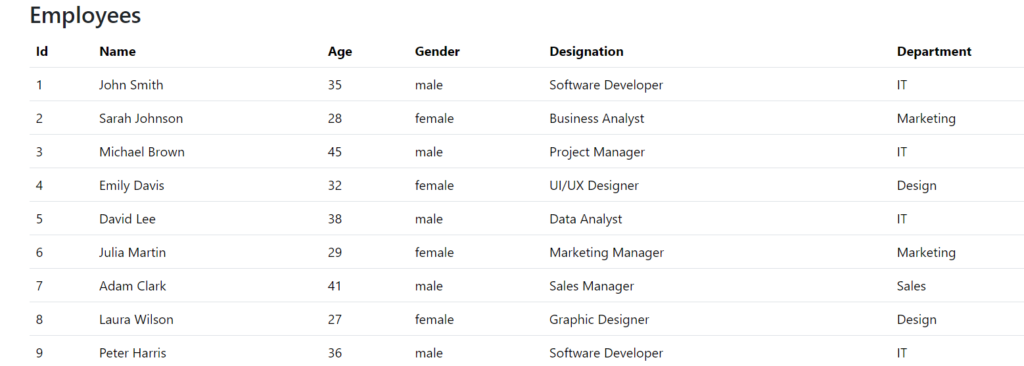
The original employee page receives DncWrapper as a cascading parameter. During initialization, it passes the employee task to AwaitTask. A three-second delay makes the loading state easy to see in the video; it is demonstration behavior, not a performance result.
namespace Dnc.Loading.WebApp.Components.Pages
{
    public class EmployeesComponent : ComponentBase
    {
        [CascadingParameter] protected
        DncWrapper DncWrapper { get; set; }

        protected List<Employee> Employees = null;
        protected override async Task OnInitializedAsync()
        {
            Employees = await DncWrapper.AwaitTask(GetEmployees());
        }

        private async Task<List<Employee>> GetEmployees()
        {
            await Task.Delay(3000);
            var json = File.ReadAllText(@"./Data/employees.json");
            return JsonSerializer.Deserialize<List<Employee>(json,
                options: new JsonSerializerOptions
                {
                    PropertyNameCaseInsensitive = true
                });
        }
    }

    public partial class Employee
    {
        public int Id { get; set; }
        public string Name { get; set; }
        public int Age { get; set; }
        public string Gender { get; set; }
        public string Designation { get; set; }
        public string Department { get; set; }
    }
}
The task starts before AwaitTask receives it because GetEmployees() is evaluated first. The wrapper then waits for that task while displaying the overlay. For real I/O, pass a cancellation token into the operation itself where the API supports one. The synchronous File.ReadAllText is acceptable only as a small historical demo shortcut; large or remote work should not block the server circuit.

Verify the Original Behavior
Use the following checks when running the historical sample:
- Open the employee page and confirm that the loading layer appears during the artificial delay.
- Confirm that the spinner disappears after the employee list is assigned.
- Cause the data operation to throw and verify that the overlay still disappears because cleanup occurs in
finally. - Navigate away during loading and confirm that the circuit does not report an unhandled disposal or cancellation error.
- Test slow and fast operations. A spinner that flashes for a very short task can be more distracting than helpful.
The original .NET 8 demonstration recorded in May 2024.
Production Risks and Safer Design Choices
Overlapping operations need more than one Boolean
The wrapper stores one Loading flag and one CancellationTokenSource. If two operations overlap, the first operation to finish can set Loading to false while the second is still running. The later call also replaces the earlier token source. A production implementation should prevent overlap, maintain an operation counter, or give each operation its own scoped state.
Cancellation must reach the underlying operation
WaitAsync(cancellationTokenSource.Token) cancels the wait, but it does not automatically stop the already-started task. The underlying HTTP request, database query, delay, or other operation must accept the same token. The sample also does not expose a cancel command and does not dispose the token source. Treat its cancellation code as a starting point, not a complete cancellation design.
Errors need a visible recovery path
The sample annotates TaskCanceledException.Data and rethrows, but it does not render an error message or retry action. In a real application, distinguish cancellation from failure, log useful diagnostic context, preserve the previous usable UI when possible, and show a safe recovery action. Never convert every failure into an endless spinner.
Interaction and accessibility require explicit decisions
The overlay uses pointer-events: none, so users can still activate controls beneath it. That can cause duplicate submissions. Decide whether the region should remain usable, disable only the initiating control, or deliberately block the affected region. Do not rely on the blur effect as an interaction lock.
For assistive technology, mark the affected region with aria-busy="true" while it is updating and expose a concise status message. An indeterminate progress indicator should have a meaningful accessible name and should not provide a fake percentage. Also respect reduced-motion preferences if the spinner rotates continuously. The visible word “Loading…” alone does not define the state relationship for every screen reader.
Review dependencies and layout assumptions
The spinner depends on Font Awesome loaded from a public CDN. A local SVG or CSS spinner can reduce external dependencies. If the CDN remains, pin and monitor the dependency, configure Content Security Policy correctly, and test offline or restricted-network behavior. Recheck the fixed minimum height, viewport cap, stacking context, dark mode, mobile layout, and high-contrast appearance in the actual product.
Current Compatibility Status
The original repository targets .NET 8, which remains an active long-term support release until November 10, 2026. The component concepts—component state, cascading values, asynchronous lifecycle methods, and interactive render modes—remain relevant. However, this article preserves the 2024 source exactly and does not certify it against a later .NET release, updated dependencies, or a different hosting model.
If you adopt the sample today, first run the repository on the exact SDK and package versions you intend to deploy. Then add tests for concurrent operations, cancellation propagation, navigation during loading, exceptions, keyboard interaction, screen-reader announcements, and reduced motion before treating it as production-ready.
Conclusion
The original Blazor loading spinner component demonstrates a clear reusable pattern: own loading state in a wrapper, await work through one method, and render the overlay around child content. It is a useful teaching implementation and preserves a working 2024 demo.
For production, the visual spinner is the easy part. Correct ownership, overlapping operations, real cancellation, error recovery, interaction control, accessibility, and responsive layout determine whether the loading experience is reliable. Keep the wrapper small, define its scope explicitly, and test failure paths as carefully as the successful delay shown in the demo.
Official References
- ASP.NET Core Razor component rendering
- ASP.NET Core Razor component lifecycle
- ASP.NET Core Blazor synchronization context
- Handle errors in ASP.NET Core Blazor apps
- ASP.NET Core Blazor render modes
- WCAG 2.2: Understanding Status Messages
- .NET support policy
Found this useful? Support more practical developer content.