
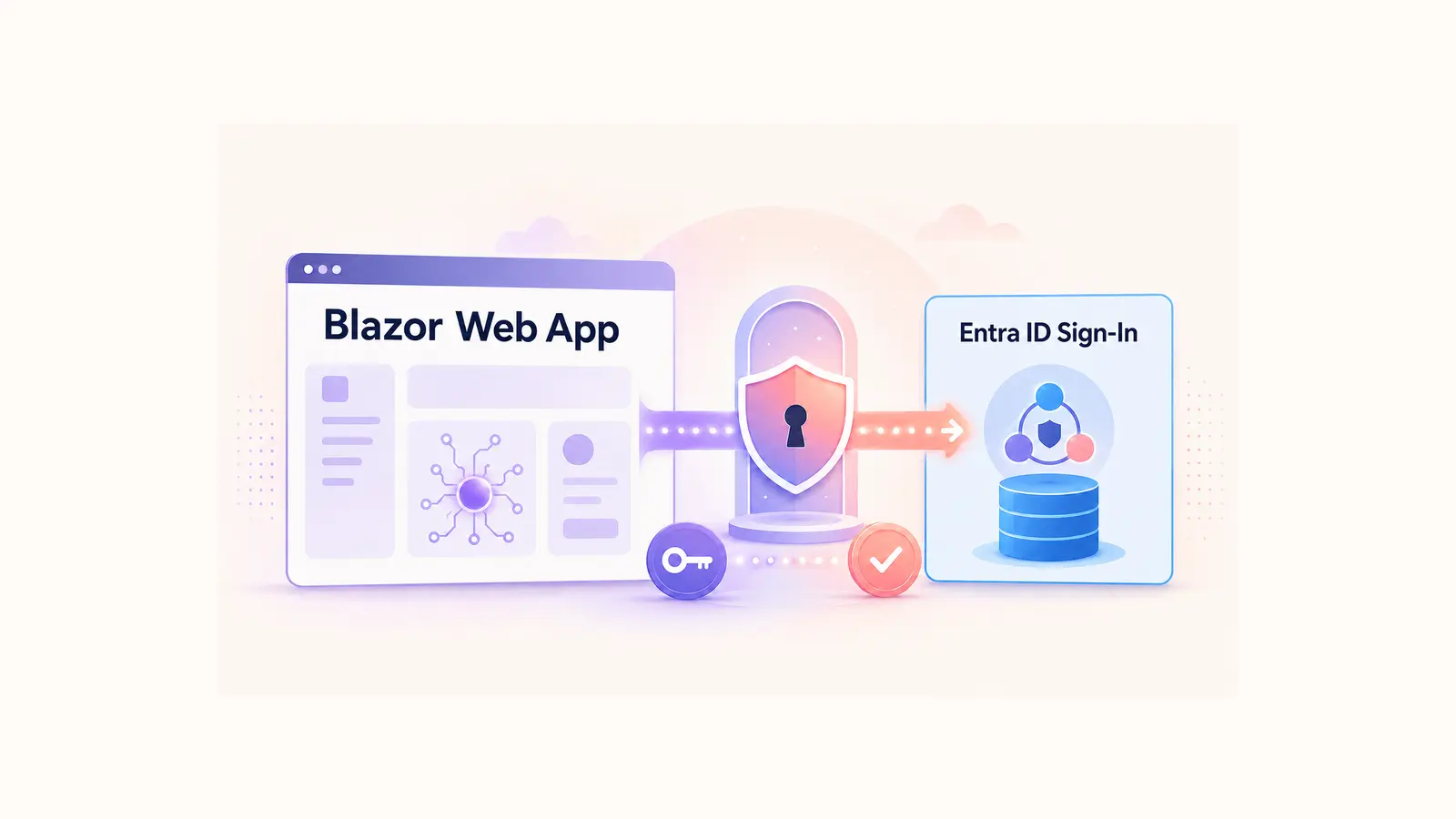
A Blazor Web App can delegate sign-in to Microsoft Entra ID by using OpenID Connect and Microsoft.Identity.Web. The browser is redirected to Microsoft for authentication, the app validates the returned identity, and Blazor receives an authenticated ClaimsPrincipal that can be used by authorization policies and components.
This guide refreshes the original October 2024 .NET 8 demo without pretending that its historical code was rebuilt on a newer framework. The original video, screenshots, and GitHub repository remain available as evidence of the working implementation. The explanation now separates authentication from authorization, removes an obsolete credential from the article, and updates the guidance for interactive Blazor components.
Table of Contents
What the original .NET 8 demo proves
The original project demonstrates a server-side Blazor Web App that redirects an unauthenticated visitor to Microsoft Entra ID, returns the user to the application after sign-in, and exposes identity claims to the app. It targets .NET 8 and uses the package versions recorded in the repository.
Version note: .NET 8 is an LTS release, but framework support and NuGet packages have their own servicing timelines. Treat the package versions below as part of the historical demo. Review the current .NET support policy and upgrade guidance before using the sample as the foundation of a new production system.
Create the Blazor Web App
The demo starts with a blank solution named BlazorEntra and a Blazor Web App project named Dnc.BlazorWebApp. It targets .NET 8 and uses server-side interactive rendering.


The authentication configuration in this article belongs to the server project. A browser-delivered client cannot safely keep a client secret, so do not copy this server configuration into a standalone WebAssembly application.
Register the application in Microsoft Entra ID
Open the Microsoft Entra admin center or Azure portal, go to App registrations, and create a registration for the Blazor application. Record the directory (tenant) ID and application (client) ID. These values identify the tenant and registration; they are not secrets.


Add a Web redirect URI that exactly matches the local HTTPS address used by the application. For the Microsoft Identity UI endpoints used by this sample, the sign-in callback is normally /signin-oidc and the signed-out callback is /signout-callback-oidc. The scheme, host, port, and path must match the running app.

Use a development credential safely
The historical demo used a client secret because the Blazor server is a confidential web client. A secret is acceptable for local development or testing, but it must never be committed to Git, embedded in a screenshot, or stored in a public article. The former literal value has been removed and replaced with a placeholder.

For local development, keep the secret outside appsettings.json by using .NET user secrets:
dotnet user-secrets init
dotnet user-secrets set "AzureAd:ClientSecret" "LOCAL_DEVELOPMENT_SECRET"
For production, prefer a certificate or a workload identity mechanism such as managed identity or federated credentials when the hosting environment supports it. A secret has an expiry date and creates an operational failure point that must be rotated deliberately.
Install the historical demo packages
The October 2024 repository records these package versions. They document the environment used by the demo; they are not a recommendation to pin a new application to old packages.
dotnet add package Microsoft.AspNetCore.Authentication.OpenIdConnect --version 8.0.10
dotnet add package Microsoft.Identity.Web --version 3.2.2
dotnet add package Microsoft.Identity.Web.UI --version 3.2.2
For a new project, select package versions compatible with its target framework and apply current security updates.
Configure Microsoft Entra ID
Store only non-secret identifiers in the committed configuration. Replace the placeholders with the tenant and application IDs from the registration.
{
  "AzureAd": {
    "Instance": "https://login.microsoftonline.com/",
    "Domain": "YOUR_TENANT_DOMAIN",
    "TenantId": "YOUR_TENANT_ID",
    "ClientId": "YOUR_CLIENT_ID",
    "CallbackPath": "/signin-oidc",
    "SignedOutCallbackPath": "/signout-callback-oidc"
  }
}
The secret supplied through user secrets is merged into the same AzureAd configuration section at runtime. Do not add the secret to this JSON file.
Register authentication and authorization services
AddMicrosoftIdentityWebApp configures the OpenID Connect challenge and cookie-based session used by the server application. The Identity UI package provides controller endpoints for sign-in and sign-out, so the app must also map controllers.
using Microsoft.AspNetCore.Authentication.OpenIdConnect;
using Microsoft.Identity.Web;
using Microsoft.Identity.Web.UI;

var builder = WebApplication.CreateBuilder(args);

builder.Services
    .AddAuthentication(OpenIdConnectDefaults.AuthenticationScheme)
    .AddMicrosoftIdentityWebApp(builder.Configuration.GetSection("AzureAd"));

builder.Services.AddAuthorization(options =>
{
    options.FallbackPolicy = options.DefaultPolicy;
});

builder.Services
    .AddRazorComponents()
    .AddInteractiveServerComponents();

builder.Services
    .AddControllersWithViews()
    .AddMicrosoftIdentityUI();

var app = builder.Build();

app.UseHttpsRedirection();
app.UseStaticFiles();
app.UseAntiforgery();

app.MapControllers();
app.MapRazorComponents<App>()
    .AddInteractiveServerRenderMode();

app.Run();
Authentication answers “Who is the user?” Authorization answers “May this user perform this operation?” The fallback policy above protects endpoints that do not explicitly opt out. Use [AllowAnonymous] only for content that must remain public, and use named policies, roles, or claims for operations that need stronger rules.
Add sign-in and sign-out links
AuthorizeView renders different UI for authenticated and anonymous users. The Identity UI endpoints initiate the OpenID Connect challenge and sign-out flow.
<AuthorizeView>
    <Authorized Context="auth">
        <span>Hello, @auth.User.Identity?.Name</span>
        <a href="MicrosoftIdentity/Account/SignOut">Sign out</a>
    </Authorized>
    <NotAuthorized>
        <a href="MicrosoftIdentity/Account/SignIn">Sign in</a>
    </NotAuthorized>
</AuthorizeView>
Read the user in an interactive component
The historical sample registered IHttpContextAccessor and read claims through HttpContext.User inside a component. That code records how the 2024 demo was built, but it is not the preferred pattern for interactive rendering. A valid HttpContext is not guaranteed throughout the lifetime of an interactive Blazor circuit.
Use Blazor authentication state inside components instead:
@using Microsoft.AspNetCore.Components.Authorization
@inject AuthenticationStateProvider AuthenticationStateProvider

@code {
    private ClaimsPrincipal? user;

    protected override async Task OnInitializedAsync()
    {
        var state = await AuthenticationStateProvider
            .GetAuthenticationStateAsync();

        user = state.User;
    }
}
Use AuthorizeView for conditional UI and [Authorize] or authorization policies at the server boundary for real protection. Hiding a button is not an authorization control; the server operation must still reject unauthorized calls.
Test the complete authentication path
A successful sign-in is only one test case. Verify the failure paths before release:
- Anonymous request: the protected route should challenge or reject the visitor as designed.
- Valid account: sign-in should return to the expected callback and create an authenticated session.
- Wrong redirect URI: Entra ID should reject a URI that is not registered; never weaken validation to work around it.
- Expired or missing credential: the server should fail clearly, and monitoring should reveal the problem before users report it.
- Insufficient authorization: an authenticated user without the required policy, role, or claim must receive a denial.
- Sign-out: local session state should end and the user should return through the configured callback.
Historical source and result
The original source remains available in the Blazor Server App Authentication with Entra ID repository. It is preserved as a working .NET 8 historical demo. Review its package versions and credential-handling choices before reusing it in a current project.

Conclusion
The durable design is straightforward: use OpenID Connect through Microsoft Identity Web, keep credentials outside source control, enforce authorization at the server boundary, and consume authentication state through Blazor-aware APIs inside interactive components. The 2024 demo still shows the full sign-in experience, while the refreshed guidance makes its security and lifecycle boundaries explicit.
References
- Microsoft Learn: Secure an ASP.NET Core Blazor Web App with Microsoft Entra ID
- Microsoft Learn: ASP.NET Core Blazor authentication and authorization
- Microsoft Learn: IHttpContextAccessor and HttpContext in Blazor
- Microsoft Learn: Use client secrets with Microsoft.Identity.Web
- Microsoft Learn: Use certificates with Microsoft.Identity.Web
- .NET support policy
Found this useful? Support more practical developer content.