
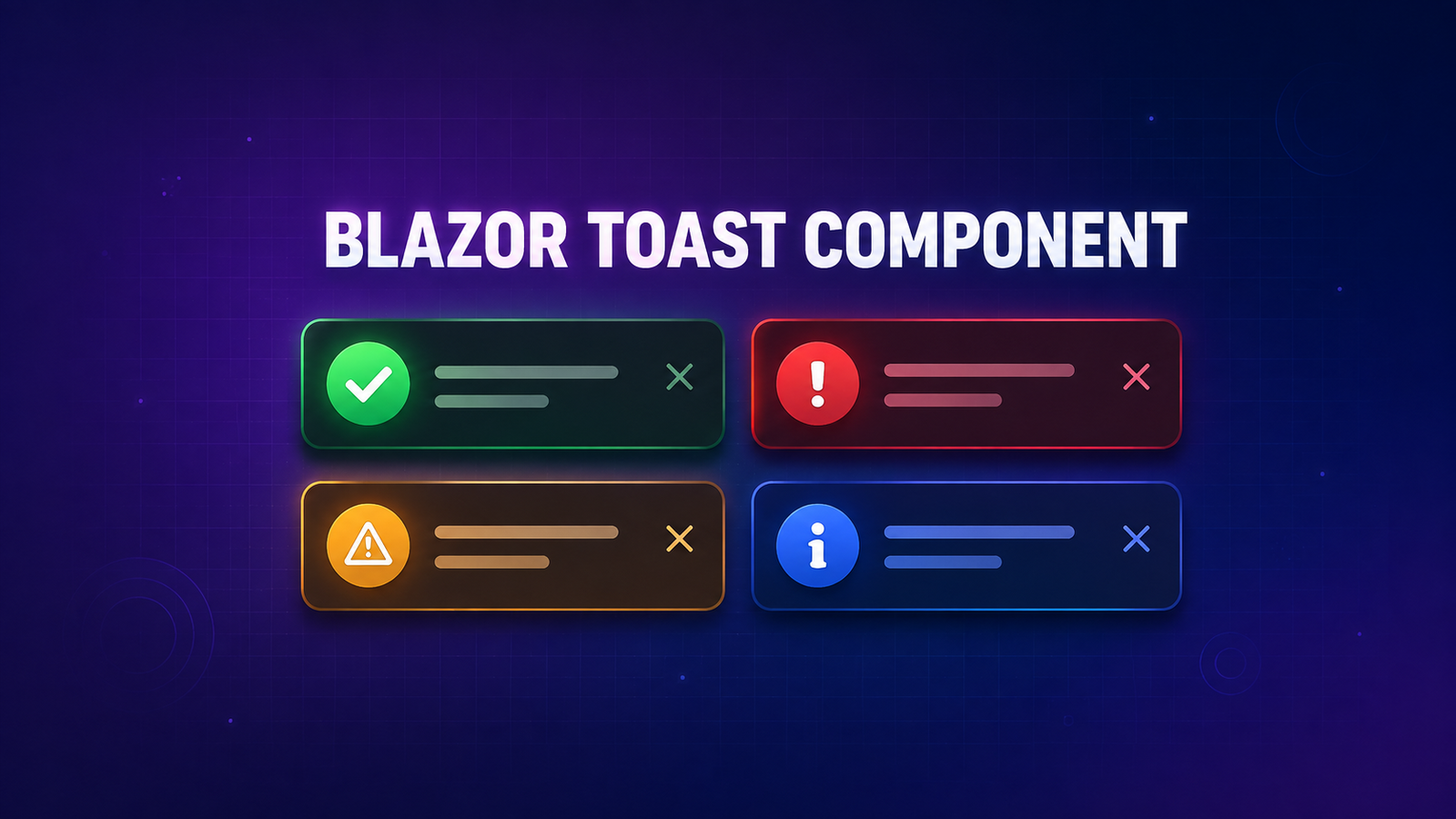
A Blazor toast component should behave like a small notification system, not a single Boolean flag. A production-ready implementation needs to handle overlapping messages, marshal updates onto Blazor’s renderer, cancel auto-dismiss work when a toast closes, release event subscriptions, and expose accessible status information without moving keyboard focus.
This guide builds that implementation for a current .NET 10 Blazor Web App using C#, Razor, and CSS only—no JavaScript and no UI package. The original 2024 .NET 8 demo and GitHub repository are preserved later as a historical implementation, with its limitations explained clearly.
Table of Contents
Why replace the original Blazor toast design?
The 2024 version proved that a toast can be built without JavaScript. However, its component also owned the service API, stored only one message, rendered the message as MarkupString, and used an uncancelled Task.Delay. Those choices become fragile when two operations finish close together or when message text contains untrusted data.
The updated design separates responsibilities:
ToastServicepublishes notification requests.ToastHostowns visible UI state and renderer interaction.- Each toast has its own identity and cancellation token.
- Razor encodes message text instead of rendering arbitrary HTML.
- ARIA roles announce messages without stealing focus.
This is intentionally an in-process UI service. It is suitable for messages produced inside the current interactive Blazor session. It is not a cross-user notification bus and shouldn’t be injected into a singleton background worker on Blazor Server.
Create the toast model and service
Start with an immutable message. The unique identifier allows one toast to be dismissed without affecting another, while a nullable duration distinguishes persistent notifications from auto-dismissed notifications.
namespace DotNetCoder.Toasts;

public enum ToastLevel
{
    Success,
    Error,
    Warning,
    Info
}

public sealed record ToastMessage(
    Guid Id,
    ToastLevel Level,
    string Text,
    string? Title,
    TimeSpan? Duration);
The service publishes messages but doesn’t know how they are rendered. Convenience methods keep calling code short, and the persistent method makes the no-timeout decision explicit rather than overloading a magic duration value.
namespace DotNetCoder.Toasts;

public sealed class ToastService
{
    private static readonly TimeSpan DefaultDuration =
        TimeSpan.FromSeconds(5);

    internal event Action<ToastMessage>? Requested;

    public void Success(string text, string? title = null,
        TimeSpan? duration = null) =>
        Publish(text, ToastLevel.Success, title,
            duration ?? DefaultDuration);

    public void Error(string text, string? title = null,
        TimeSpan? duration = null) =>
        Publish(text, ToastLevel.Error, title,
            duration ?? TimeSpan.FromSeconds(8));

    public void Warning(string text, string? title = null,
        TimeSpan? duration = null) =>
        Publish(text, ToastLevel.Warning, title,
            duration ?? DefaultDuration);

    public void Info(string text, string? title = null,
        TimeSpan? duration = null) =>
        Publish(text, ToastLevel.Info, title,
            duration ?? DefaultDuration);

    public void Persistent(
        string text,
        ToastLevel level = ToastLevel.Info,
        string? title = null) =>
        Publish(text, level, title, duration: null);

    private void Publish(
        string text,
        ToastLevel level,
        string? title,
        TimeSpan? duration)
    {
        ArgumentException.ThrowIfNullOrWhiteSpace(text);

        if (duration is { } value && value <= TimeSpan.Zero)
        {
            throw new ArgumentOutOfRangeException(
                nameof(duration),
                "Duration must be greater than zero.");
        }

        Requested?.Invoke(new ToastMessage(
            Guid.NewGuid(), level, text, title, duration));
    }
}
The event is internal so consumers can request notifications but can’t raise the event themselves. If the service and component live in different assemblies, expose a small subscription abstraction instead of making the event publicly writable.
Build the ToastHost component
ToastHost subscribes once, keeps a bounded list, and owns one CancellationTokenSource per auto-dismiss timer. The service event may be raised outside Blazor’s synchronization context, so the handler uses InvokeAsync before it changes component state.
@using DotNetCoder.Toasts
@inject ToastService Toasts
@implements IDisposable
<div class="toast-region" aria-label="Notifications">
@foreach (var toast in _toasts)
{
<section @key="toast.Id"
class="toast @CssClass(toast.Level)"
role="@Role(toast.Level)"
aria-live="@LiveMode(toast.Level)"
aria-atomic="true">
<div class="toast__content">
@if (!string.IsNullOrWhiteSpace(toast.Title))
{
<strong class="toast__title">@toast.Title</strong>
}
<span>@toast.Text</span>
</div>
<button type="button"
class="toast__close"
aria-label="Dismiss notification"
@onclick="() => Dismiss(toast.Id)">
<span aria-hidden="true">×</span>
</button>
</section>
}
</div>
@code {
[Parameter]
public int MaximumVisible { get; set; } = 4;
private readonly List<ToastMessage> _toasts = [];
private readonly Dictionary<Guid, CancellationTokenSource> _timers = [];
private bool _disposed;
protected override void OnInitialized()
{
Toasts.Requested += OnRequested;
}
private void OnRequested(ToastMessage toast)
{
_ = InvokeAsync(() => AddAsync(toast));
}
private async Task AddAsync(ToastMessage toast)
{
if (_disposed)
{
return;
}
_toasts.Add(toast);
var limit = Math.Max(1, MaximumVisible);
while (_toasts.Count > limit)
{
Dismiss(_toasts[0].Id);
}
StateHasChanged();
if (toast.Duration is not { } duration)
{
return;
}
var timer = new CancellationTokenSource();
var token = timer.Token;
_timers.Add(toast.Id, timer);
try
{
await Task.Delay(duration, token);
Dismiss(toast.Id);
}
catch (OperationCanceledException)
when (token.IsCancellationRequested)
{
// Manual dismissal or component disposal.
}
}
private void Dismiss(Guid id)
{
_toasts.RemoveAll(toast => toast.Id == id);
if (_timers.Remove(id, out var timer))
{
timer.Cancel();
timer.Dispose();
}
if (!_disposed)
{
StateHasChanged();
}
}
private static string CssClass(ToastLevel level) =>
$"toast--{level.ToString().ToLowerInvariant()}";
private static string Role(ToastLevel level) =>
level == ToastLevel.Error ? "alert" : "status";
private static string LiveMode(ToastLevel level) =>
level == ToastLevel.Error ? "assertive" : "polite";
public void Dispose()
{
_disposed = true;
Toasts.Requested -= OnRequested;
foreach (var timer in _timers.Values)
{
timer.Cancel();
timer.Dispose();
}
_timers.Clear();
_toasts.Clear();
}
}Do not call StateHasChanged from Dispose. At that point the renderer can already be tearing down the component. Unsubscribe, cancel pending work, and release resources only.
Add accessible CSS-only styling
Put the following styles in ToastHost.razor.css. CSS isolation keeps the toast selectors local to the component. The notification region stays inside the viewport, the close button has a visible keyboard focus state, and the reduced-motion query removes entrance animation for users who request it.
.toast-region {
    position: fixed;
    inset-block-start: 1rem;
    inset-inline-end: 1rem;
    z-index: 1100;
    display: grid;
    gap: .75rem;
    width: min(24rem, calc(100vw - 2rem));
    pointer-events: none;
}

.toast {
    display: flex;
    align-items: flex-start;
    justify-content: space-between;
    gap: 1rem;
    padding: 1rem;
    color: #fff;
    border-radius: .75rem;
    box-shadow: 0 .75rem 2rem rgb(15 23 42 / 22%);
    pointer-events: auto;
    animation: toast-enter 180ms ease-out;
}

.toast--success { background: #166534; }
.toast--error   { background: #991b1b; }
.toast--warning { background: #7c4a03; }
.toast--info    { background: #164e63; }

.toast__content {
    display: grid;
    gap: .2rem;
    overflow-wrap: anywhere;
}

.toast__title {
    font-size: 1rem;
}

.toast__close {
    flex: 0 0 auto;
    padding: .15rem .45rem;
    color: inherit;
    font: inherit;
    font-size: 1.35rem;
    line-height: 1;
    background: transparent;
    border: 0;
    border-radius: .25rem;
    cursor: pointer;
}

.toast__close:focus-visible {
    outline: 3px solid #fff;
    outline-offset: 2px;
}

@keyframes toast-enter {
    from {
        opacity: 0;
        transform: translateY(-.5rem);
    }
}

@media (prefers-reduced-motion: reduce) {
    .toast { animation: none; }
}
A CSS transition can animate entry, but it can’t reliably coordinate delayed removal or concurrent messages. C# should own notification lifetime; CSS should own appearance.
Register and render the toast system
Register the service as scoped in the server project. In Interactive Server mode, the scoped instance belongs to one user’s circuit, preventing one user’s messages from appearing in another user’s UI.
// Program.cs
builder.Services.AddScoped<ToastService>();
The host and every component that calls the service must be inside the same interactive render-mode boundary. For a globally interactive server app, the root components can be configured in App.razor:
<HeadOutlet @rendermode="InteractiveServer" />
<Routes @rendermode="InteractiveServer" />
If your application uses per-page interactivity, don’t copy that root configuration blindly. Place ToastHost inside the same interactive subtree as the callers. Static SSR renders HTML but can’t process the close button or service events.
Render one host near the top of MainLayout.razor. One host is enough for the interactive UI scope.
@inherits LayoutComponentBase

<ToastHost MaximumVisible="4" />

<main>
    @Body
</main>
For Interactive WebAssembly or Interactive Auto, register the service in every project that resolves the component during rendering. Microsoft specifically calls out client services that fail during prerendering when they’re registered only in the .Client project.
Use toasts without coupling business logic
Inject ToastService into the UI component that knows what the outcome means to the user. Domain and application services should return results or throw meaningful exceptions; they shouldn’t depend on a visual notification service.
@page "/profile"
@using System.ComponentModel.DataAnnotations
@inject ToastService Toasts
@inject ProfileService Profiles

<button type="button" @onclick="SaveAsync">Save profile</button>

@code {
    private async Task SaveAsync()
    {
        try
        {
            await Profiles.SaveAsync();
            Toasts.Success(
                "Your changes are now active.",
                title: "Profile saved");
        }
        catch (ValidationException exception)
        {
            Toasts.Warning(exception.Message, "Check the form");
        }
        catch (Exception)
        {
            Toasts.Error(
                "The profile couldn't be saved. Try again.",
                title: "Save failed");
        }
    }
}
Log the unexpected exception separately; a toast is user feedback, not observability. Also avoid placing confidential exception details in a notification that may be exposed in the browser.
The cancellation and disposal ideas are also useful in a reusable Blazor search component with debounce and cancellation. For another example of keeping a reusable component API strongly typed, see the reusable Blazor select component.
Reliability and accessibility decisions
Render plain text by default
Razor encodes @toast.Text. That is the safe default for messages containing validation text, API responses, or user-controlled values. The original MarkupString approach can render arbitrary HTML and should only be used with content that has been sanitized by a deliberate policy.
Cancel one timer per toast
A single shared timer creates a race: the first delay may hide a newer message. Per-toast cancellation means manual dismissal, queue eviction, and component disposal stop only the work they own. Bounding the visible list also prevents a burst of failures from covering the page.
Announce without moving focus
Use role="status" and polite announcements for routine information. Reserve role="alert" and assertive announcements for failures that genuinely require immediate attention. The WAI alert pattern doesn’t require keyboard interaction, so the app shouldn’t move focus to every toast. The dismiss button remains keyboard reachable for persistent or longer-lived messages.
Know when to use a library
This component is a good fit when you need short text notifications with predictable behavior and want to own the CSS. Choose a maintained component library when you need action buttons, progress indicators, pause-on-hover, swipe gestures, localization infrastructure, portal positioning, or an established accessibility test matrix. Avoid rebuilding a complete notification framework to save one dependency.
Production checklist
- Keep one
ToastHostinside the intended interactive scope. - Use a scoped service for Interactive Server so state is isolated per circuit.
- Register required services in both server and client projects when prerendering Interactive WebAssembly or Auto components.
- Call
InvokeAsyncbefore changing component state from service or background callbacks. - Cancel every delayed dismissal and unsubscribe from events during disposal.
- Render untrusted message text normally; don’t cast it to
MarkupString. - Use
statusfor routine feedback and reservealertfor urgent errors. - Provide a real button, an accessible label, visible focus, sufficient contrast, and reduced-motion behavior.
- Cap the visible queue and decide deliberately whether notifications survive navigation.
- Log operational failures separately from the user-facing toast.
Historical 2024 .NET 8 implementation
The following section preserves the original .NET 8 implementation, screenshots, and repository published in May 2024. It successfully demonstrated a C#-, Razor-, and CSS-only toast using a wrapper component. Treat it as historical learning material: it stores a single message, uses MarkupString, and doesn’t include the queue, cancellation, render-mode, and accessibility protections described above.
Introduction
A Blazor toast component is a user interface used for displaying messages or alerts to end users. Messages that appear briefly and then fade away usually provide information without disrupting the user’s workflow. In this post, we will see how to create a Blazor toast component using only C#, Html and CSS.
Creating a Toast Solution and adding a Razor class library project
Open Visual Studio and create a blank solution named Toast and add a new Razor Class library named Dnc.Common.Razor to the solution. I selected .NET 8 (Long Term Support) as the target Framework.
Creating the DncWrapper component – Unfinished
A wrapper component is a component that encapsulates other components or elements within itself, There are many uses for this encapsulation, Including adding functionality, changing behavior, or simply changing the appearance of the encapsulated content.
The wrapper component encapsulates the Body property in the MainLayout component, and makes the blazor toast component available to all child components.
We start by creating a new folder called Wrapper in the Dnc.Common.Razor project and add a new class file called DncWrapperComponent.cs, which is derived from the ComponentBase class.
namespace Dnc.Common.Razor.Wrapper
{
    public class DncWrapperComponent:ComponentBase
    {
        [Parameter]
        public RenderFragment ChildContent { get; set; }
    }
}
In the Wrapper folder create a new file called DncWrapper.razor, which inherits from the DncWrapperComponent class, and enter the following mark-up.
@inherits DncWrapperComponent
<div class="dnc-wrapper">
    <CascadingValue Value="this">
        @ChildContent
    </CascadingValue>
</div>
The DncWrapperComponent component instance is passed on as a complex type to all descendent components. The Descendant components can then perform actions with the instance by using its methods and binding to its properties.
We will add the methods of the Blazor Toast component to the wrapper component later.
Creating the Blazor Toast service
First we need to create a new folder called Enums and add an enum called MessageType. Here we need to add the 4 different message types as follows.
namespace Dnc.Common.Razor.Enums
{
    public enum MessageType
    {
        Success = 0,
        Error = 1,
        Warning = 2,
        Info = 3
    }
}
Second create a new folder called Interfaces in the Dnc.Common.Razor project and add a new interface file called IToastService.
namespace Dnc.Common.Razor.Interfaces
{
    public interface IToastService
    {
        Task ShowMessage(string message, MessageType messageType, TimeSpan? duration = null);
        Task ShowSuccessMessage(string message, TimeSpan? duration = null);
        Task ShowErrorMessage(string message, TimeSpan? duration = null);
        Task ShowWarningMessage(string message, TimeSpan? duration = null);
        Task ShowInfoMessage(string message, TimeSpan? duration = null);
    }
}
The IToastService interface contains methods that are responsible for displaying the messages for a specific time or permanently.
Creating the Blazor Toast Component
A Blazor Toast component is responsible for displaying messages to end users.
The message appears for a short time when you set the time span value and then disappears, or can be displayed until the end user closes it by clicking the close button.
The Blazor Toast component is created using C#, Html and CSS only.
Create a new folder called Toast and add a class file called DncToastComponent, which is derived from the ComponentBase class and implements the IToastService and IDisposable interfaces as follows.
namespace Dnc.Common.Razor.Toast
{
    public class DncToastComponent : ComponentBase, IToastService, IDisposable
    {
        [CascadingParameter]
        protected DncWrapperComponent DncWrapper { get; set; }
        [Inject]
        protected NavigationManager NavigationManager { get; set; }
        protected MarkupString Message { get; set; }
        protected bool Show { get; set; }
        protected string ToastBackgroundColor { get; set; }
        private string currentLocation = string.Empty;
        protected override void OnInitialized()
        {
            DncWrapper.SetToastService(this);
        }
        public async Task ShowSuccessMessage(string message, TimeSpan? duration = null)
        {
            await ShowMessage(message, MessageType.Success,duration);
        }
        public async Task ShowErrorMessage(string message, TimeSpan? duration = null)
        {
            await ShowMessage(message, MessageType.Error, duration);
        }
        public async Task ShowWarningMessage(string message, TimeSpan? duration = null)
        {
            await ShowMessage(message, MessageType.Warning, duration);
        }
        public async Task ShowInfoMessage(string message, TimeSpan? duration = null)
        {
            await ShowMessage(message, MessageType.Info, duration);
        }
        public async Task ShowMessage(string message, MessageType messageType, TimeSpan? duration = null)
        {
            Show = true;
            Message = (MarkupString)message;
            switch (messageType)
            {
                case MessageType.Success:
                    ToastBackgroundColor = "dnc-toast-success";
                    break;
                case MessageType.Error:
                    ToastBackgroundColor = "dnc-toast-error";
                    break;
                case MessageType.Warning:
                    ToastBackgroundColor = "dnc-toast-warning";
                    break;
                case MessageType.Info:
                    ToastBackgroundColor = "dnc-toast-info";
                    break;
            }
            currentLocation = NavigationManager.Uri;
            NavigationManager.LocationChanged -= NavigationHandler;
            NavigationManager.LocationChanged += NavigationHandler;
            StateHasChanged();
            if (duration != null)
            {
                await Task.Delay((TimeSpan)duration);
                Clear();
            }
        }
        protected void Close()
        {
            Show = false;
        }
        public void Clear()
        {
            Show = false;
            StateHasChanged();
        }
        public void Dispose()
        {
            NavigationManager.LocationChanged -= NavigationHandler;
        }
        private void NavigationHandler(object sender, LocationChangedEventArgs args)
        {
            if(!string.Equals(args.Location, currentLocation, StringComparison.OrdinalIgnoreCase)){
                Clear();
                NavigationManager.LocationChanged -= NavigationHandler;
                StateHasChanged();
            }
        }
    }
}
We define a few properties and fields that will be used in the mark up, and the DncWrapper component is injected into the DncToast component as a cascading parameter.
Next we override the OnInitialized of Blazors component lifecycle events to make the methods of the DncToast component available in the DncWarpper component by using the SetToastService method that is added to the DncWrapper component in the next section.
Then we created an event handler NavigationHandler , which is responsible for closing the message when the location changes.
Finally, ShowMessage , which is used by the other methods to display the different type of messages, sets the style of the toast message and sets the Show property to true , so that the blazor toast component is visible for a certain time if the duration is not null .
The mark up of the Toast component is simple and self-explanatory. In the Toast folder, create a new file called DncToast.razor, which inherits from the DncToastComponent class, and enter the following mark-up.
@inherits DncToastComponent
<div id="dnc-toast" class="container">
    @if(Show)
    {
        <div class="d-flex justify-content-between dnc-toast @ToastBackgroundColor">
            <div class="toaster-content d-flex justify-content-center flex-column">
                @Message
            </div>
            <div class="dnc-toast-close">
                <a href="javascript:void(0)" @onclick="Close">
                    <i class="fa fa-times dnc-toast-close"></i>
                </a>
            </div>
        </div>
    }
</div>
Completing the DncWrapper component
The DncWrapper component wraps the entire application and provides the functionality of the Toast Component for all its children.
First, edit the DncWrapperComponent by adding the following methods.
namespace Dnc.Common.Razor.Wrapper
{
    public class DncWrapperComponent:ComponentBase
    {
        [Parameter]
        public RenderFragment ChildContent { get; set; }
        protected IToastService ToastService { get; set; }
        public void SetToastService(IToastService toastService)
        {
            ToastService = toastService;
        }
        public void ShowSuccessMessage(string message, TimeSpan? duration = null)
        {
            ToastService?.ShowSuccessMessage(message, duration);
        }
        public void ShowErrorMessage(string message, TimeSpan? duration = null)
        {
            ToastService?.ShowErrorMessage(message, duration);
        }
        public void ShowWarningMessage(string message, TimeSpan? duration = null)
        {
            ToastService?.ShowWarningMessage(message, duration);
        }
        public void ShowInfoMessage(string message, TimeSpan? duration = null)
        {
            ToastService?.ShowInfoMessage(message, duration);
        }
    }
}
The solution should look like this.

Use of the Blazor Toast in the Blazor Web App
In this section we will learn how to use our custom Blazor Toast in the Blazor application.
First, add a new Blazor Web App project template named Dnc.Toast.WebApp to the solution. I selected .NET 8 (Long Term Support) as the target Framework.
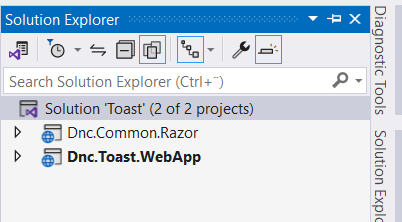
Second reference the Dnc.Common.Razor project to the Dnc.Toast.WebAppproject, and edit the _Imports.razor as follows.
@using Dnc.Common.Razor.Wrapper
@using Dnc.Common.Razor.Toast
Then encapsulate the MainLayout.razor component with the DncWrapper component as follows.
@inherits LayoutComponentBase
<DncWrapper>
    <DncToast/>
    <div class="container">
        @Body
    </div>
</DncWrapper>
Finally, insert the following code into the Home.razor and start the application.
<div class="container">
    <div class="row">
        <div class="col">
            <div class="center-block">
                <div class="btn-group-vertical" role="group" aria-label="Vertical button group">
                    <button class="btn dnc-btn-success" @onclick="ShowSuccess">Show success message</button>
                    <button class="btn dnc-btn-error" @onclick="ShowError">Show error message</button>
                    <button class="btn dnc-btn-warning" @onclick="ShowWarning">Show warning message</button>
                    <button class="btn dnc-btn-info" @onclick="ShowInfo">Show info message</button>
                </div>
            </div>
        </div>
    </div>
</div>
@code {
    [CascadingParameter]
    public DncWrapper DncWrapper { get; set; }
    public void ShowSuccess()
    {
        // DncWrapper.ShowSuccessMessage("This is Success Message", TimeSpan.FromSeconds(5));
        DncWrapper.ShowSuccessMessage("This is Success Message");
    }
    public void ShowError()
    {
        // DncWrapper.ShowErrorMessage("This is Error Message", TimeSpan.FromSeconds(5));
        DncWrapper.ShowErrorMessage("This is Error Message");
    }
    public void ShowWarning()
    {
        // DncWrapper.ShowWarningMessage("This is Warning Message", TimeSpan.FromSeconds(5));
        DncWrapper.ShowWarningMessage("This is Warning Message");
    }
    public void ShowInfo()
    {
        // DncWrapper.ShowInfoMessage("This is Info Message", TimeSpan.FromSeconds(5));
        DncWrapper.ShowInfoMessage("This is Info Message");
    }
}
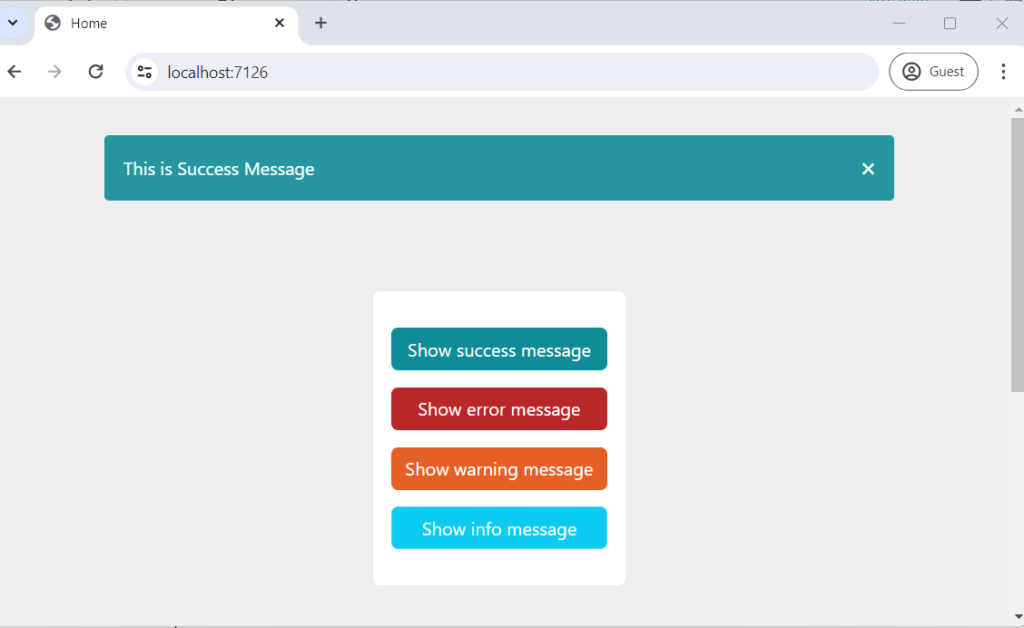
Conclusion
In this post we created a Blazor Toast component that can be used in your different projects. We started by creating a wrapper component that encapsulates the Body property in the MainLayout component, which provides the Blazor Toast functionality for the encapsulated content. I did not go through the CSS code because it’s off topic for this post.
The code for the Blazor Toast component can be found Here.
References
- Microsoft Learn: ASP.NET Core Blazor synchronization context
- Microsoft Learn: ASP.NET Core Razor component disposal
- Microsoft Learn: ASP.NET Core Blazor dependency injection
- Microsoft Learn: ASP.NET Core Blazor render modes
- W3C WAI: Alert Pattern
- DotNetCoder historical Blazor toast repository
The modern design keeps the original goal—small reusable notifications without JavaScript—but makes ownership, lifetime, safety, and accessibility explicit. That is the difference between a working demo and a component that can survive real application behavior.
Found this useful? Support more practical developer content.