
Azure Service Bus in ASP.NET Core is most reliable when a long-lived ServiceBusProcessor runs from a hosted service. Keep the Service Bus client alive for the application lifetime, create a dependency-injection scope for every message, use Peek-Lock with explicit settlement, and make the business operation idempotent.
This article shows a production-oriented design for current .NET applications. It also preserves the original 2023 ASP.NET Core 6 demo—including its code, screenshots, and GitHub repository—in a clearly separated historical section. The old demo proved the end-to-end message flow, but it should not be mistaken for the production checklist presented first.
Table of Contents
When should you use Azure Service Bus in ASP.NET Core?
An ASP.NET Core hosted consumer is a good fit when the API and the message handler belong to the same deployable application, share the same domain services, and run on infrastructure that stays alive continuously. It gives you direct control over processor lifetime, concurrency, settlement, health checks, and deployment.
Use a separate Worker Service when the consumer must scale or deploy independently from the HTTP API. Prefer an Azure Service Bus queue-triggered Function when event-driven scale, including scale-to-zero, is more important than hosting the consumer inside the API. Do not hide a critical queue consumer in an application host that your platform may suspend when HTTP traffic is idle.
Production message flow
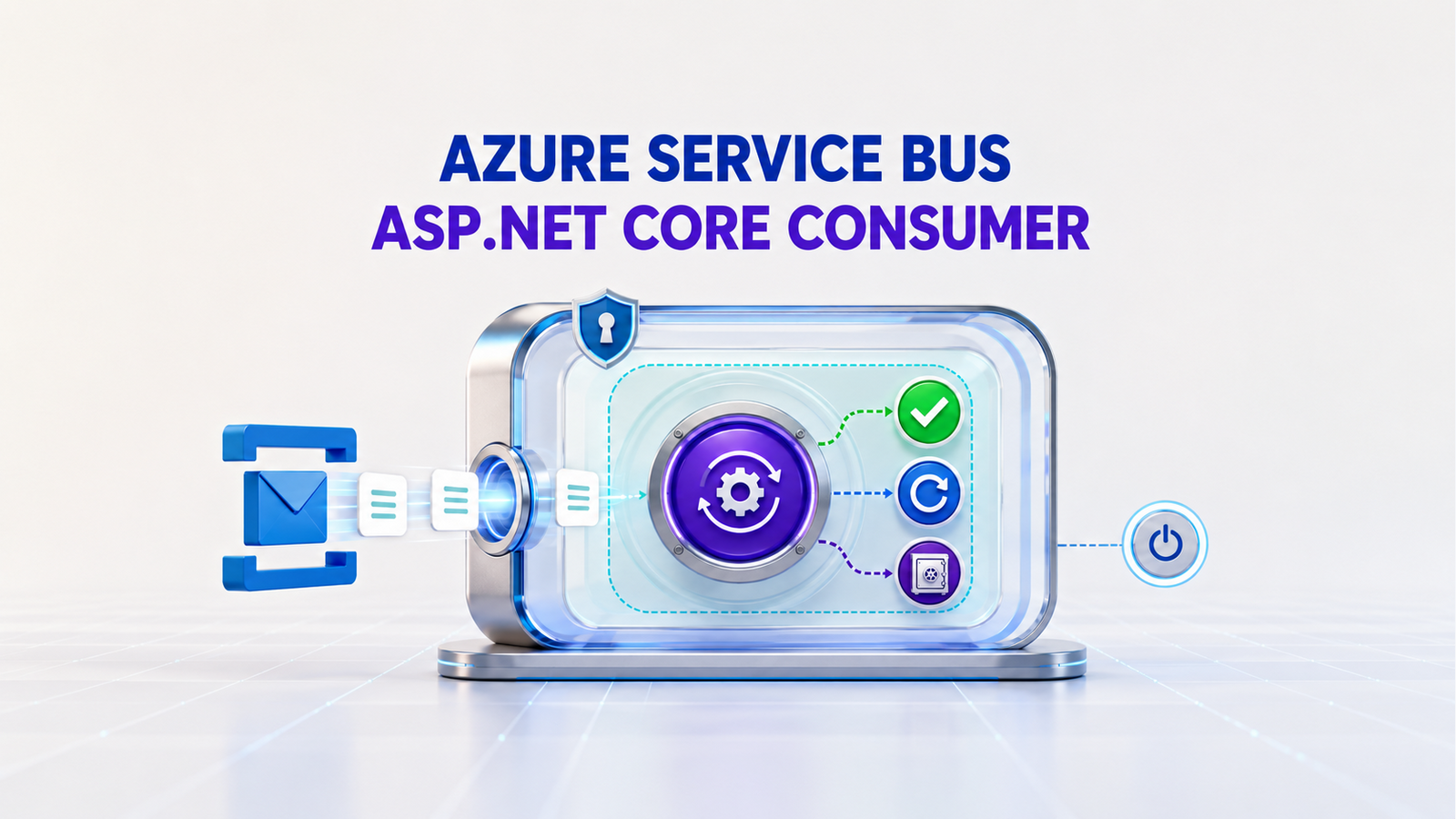
- The ASP.NET Core host starts and dependency injection creates one hosted consumer.
- The hosted consumer creates one
ServiceBusProcessorand starts it asynchronously. - For every message, the consumer creates a new asynchronous DI scope and resolves a scoped business handler.
- The handler performs an idempotent business operation, keyed by the message ID or a domain operation ID.
- The consumer completes a successful message, abandons a retryable failure, or dead-letters a permanently invalid message.
- During shutdown, the host stops the processor before disposing it and the shared client.
The hosted service itself is a singleton. A new scope per delivery is therefore essential when the handler uses scoped dependencies such as an EF Core DbContext. This follows the same lifetime rule explained in our ASP.NET Core dependency injection guide.
Configure passwordless access
Install the current compatible releases of the Azure Service Bus and Azure Identity packages. Avoid copying a production connection string into source control.
dotnet add package Azure.Messaging.ServiceBus
dotnet add package Azure.Identity
Keep only the namespace and entity name in normal configuration:
{
  "ServiceBus": {
    "FullyQualifiedNamespace": "contoso.servicebus.windows.net",
    "QueueName": "appointment-reminders",
    "MaxConcurrentCalls": 8,
    "PrefetchCount": 16
  }
}
Enable a managed identity on the Azure host and grant it the Azure Service Bus Data Receiver role at the narrowest practical scope. DefaultAzureCredential then uses that identity in Azure and can use your developer identity locally. The sending application needs the Data Sender role instead.
Register the client and hosted consumer
Register the top-level client once. Recreating it for every message repeatedly tears down and rebuilds the underlying AMQP connection.
using Azure.Identity;
using Azure.Messaging.ServiceBus;
using Microsoft.Extensions.Options;
var builder = WebApplication.CreateBuilder(args);
builder.Services
    .AddOptions<ServiceBusConsumerOptions>()
    .Bind(builder.Configuration.GetSection("ServiceBus"))
    .ValidateDataAnnotations()
    .ValidateOnStart();
builder.Services.AddSingleton(sp =>
{
    var options = sp.GetRequiredService<IOptions<ServiceBusConsumerOptions>>().Value;
    return new ServiceBusClient(
        options.FullyQualifiedNamespace,
        new DefaultAzureCredential());
});
builder.Services.AddScoped<IAppointmentMessageHandler, AppointmentMessageHandler>();
builder.Services.AddHostedService<AppointmentReminderConsumer>();
builder.Services.AddControllers();
var app = builder.Build();
app.MapControllers();
await app.RunAsync();
The options type keeps transport tuning explicit and validates required values during startup:
using System.ComponentModel.DataAnnotations;
public sealed class ServiceBusConsumerOptions
{
    [Required]
    public string FullyQualifiedNamespace { get; init; } = string.Empty;
    [Required]
    public string QueueName { get; init; } = string.Empty;
    [Range(1, 128)]
    public int MaxConcurrentCalls { get; init; } = 8;
    [Range(0, 10_000)]
    public int PrefetchCount { get; init; } = 16;
}
Implement the Service Bus consumer
IHostedService maps naturally to the processor lifecycle: start once with the host, stop accepting new work during shutdown, then dispose the processor. The message callback creates a scope because no scope is created automatically for a hosted service.
using System.Text.Json;
using Azure.Messaging.ServiceBus;
using Microsoft.Extensions.Options;
public sealed class AppointmentReminderConsumer : IHostedService, IAsyncDisposable
{
    private readonly ServiceBusProcessor _processor;
    private readonly IServiceScopeFactory _scopeFactory;
    private readonly ILogger<AppointmentReminderConsumer> _logger;
    public AppointmentReminderConsumer(
        ServiceBusClient client,
        IOptions<ServiceBusConsumerOptions> options,
        IServiceScopeFactory scopeFactory,
        ILogger<AppointmentReminderConsumer> logger)
    {
        _scopeFactory = scopeFactory;
        _logger = logger;
        var value = options.Value;
        _processor = client.CreateProcessor(
            value.QueueName,
            new ServiceBusProcessorOptions
            {
                AutoCompleteMessages = false,
                MaxConcurrentCalls = value.MaxConcurrentCalls,
                PrefetchCount = value.PrefetchCount,
                MaxAutoLockRenewalDuration = TimeSpan.FromMinutes(5)
            });
        _processor.ProcessMessageAsync += ProcessMessageAsync;
        _processor.ProcessErrorAsync += ProcessErrorAsync;
    }
    public Task StartAsync(CancellationToken cancellationToken) =>
        _processor.StartProcessingAsync(cancellationToken);
    public Task StopAsync(CancellationToken cancellationToken) =>
        _processor.StopProcessingAsync(cancellationToken);
    private async Task ProcessMessageAsync(ProcessMessageEventArgs args)
    {
        AppointmentRequested? appointment;
        try
        {
            appointment = args.Message.Body.ToObjectFromJson<AppointmentRequested>();
        }
        catch (JsonException ex)
        {
            await args.DeadLetterMessageAsync(
                args.Message, "InvalidJson", ex.Message, args.CancellationToken);
            return;
        }
        if (appointment is null)
        {
            await args.DeadLetterMessageAsync(
                args.Message,
                "EmptyPayload",
                "The message body could not be deserialized.",
                args.CancellationToken);
            return;
        }
        await using var scope = _scopeFactory.CreateAsyncScope();
        var handler = scope.ServiceProvider
            .GetRequiredService<IAppointmentMessageHandler>();
        try
        {
            await handler.HandleAsync(
                appointment,
                args.Message.MessageId,
                args.CancellationToken);
        }
        catch (PermanentAppointmentException ex)
        {
            await args.DeadLetterMessageAsync(
                args.Message,
                "PermanentBusinessFailure",
                ex.Message,
                args.CancellationToken);
            return;
        }
        catch (Exception ex)
        {
            _logger.LogWarning(
                ex,
                "Retryable failure for Service Bus message {MessageId}",
                args.Message.MessageId);
            await args.AbandonMessageAsync(
                args.Message,
                cancellationToken: args.CancellationToken);
            return;
        }
        await args.CompleteMessageAsync(
            args.Message,
            args.CancellationToken);
    }
    private Task ProcessErrorAsync(ProcessErrorEventArgs args)
    {
        _logger.LogError(
            args.Exception,
            "Service Bus error. Source: {ErrorSource}; Entity: {EntityPath}; Namespace: {Namespace}",
            args.ErrorSource,
            args.EntityPath,
            args.FullyQualifiedNamespace);
        return Task.CompletedTask;
    }
    public async ValueTask DisposeAsync()
    {
        _processor.ProcessMessageAsync -= ProcessMessageAsync;
        _processor.ProcessErrorAsync -= ProcessErrorAsync;
        await _processor.DisposeAsync();
    }
}
The example treats malformed payloads and known permanent domain errors as poison messages. Unexpected handler failures are abandoned for another delivery. If settlement itself fails—for example because the lock was lost—the exception reaches the processor error callback and the broker can redeliver the message.
Reliability decisions that matter
Make the handler idempotent
Peek-Lock delivery is reliable, but it is not a promise that your handler will run only once. A database commit can succeed and the subsequent CompleteMessageAsync call can fail, causing redelivery. Store a durable inbox record keyed by MessageId, or use a unique business operation ID in the same transaction as the state change. A second delivery should observe the completed operation and return safely.
Settle by failure type
- Complete only after the durable business operation succeeds.
- Abandon transient failures that may succeed on another attempt.
- Dead-letter invalid schemas, unsupported message versions, or permanent domain failures—and include a useful reason.
- Monitor and drain the DLQ deliberately. Service Bus does not remove DLQ messages automatically.
Tune concurrency, locks, and prefetch together
MaxConcurrentCalls is a capacity limit, not a target to maximize. Start from downstream limits such as database connections, SMTP throughput, or third-party API quotas. Prefetched messages are already locked while they wait in the local cache, so aggressive prefetch can create lock expirations when handlers are slow. Measure processing duration, delivery count, active messages, lock-lost errors, and DLQ growth before increasing either value.
Design shutdown and deployment together
Stopping the processor prevents new callbacks and coordinates shutdown with active handlers. Your hosting platform must also provide enough termination time for in-flight work. Keep handlers cancellation-aware and bounded. If the API scales out, every instance becomes a competing consumer; that may be desirable, but concurrency then equals the per-instance limit multiplied by the number of instances.
Production checklist
- Use
Azure.Messaging.ServiceBusand keep the client and processor long-lived. - Use Managed Identity and least-privilege Data Receiver access.
- Create an async DI scope for every message.
- Use Peek-Lock and settle every delivery explicitly.
- Make the business handler idempotent with durable state.
- Define retryable versus permanent failure rules.
- Alert on DLQ depth, delivery count, processing latency, and processor errors.
- Tune concurrency, prefetch, and lock renewal from measurements.
- Verify graceful shutdown and scale-out behavior in the real hosting platform.
- Keep message contracts versioned and backward compatible.
This checklist is the target design for a current production system. The following original demo remains valuable as a working record of the 2023 implementation, but it does not implement every item above.
Historical 2023 demo: ASP.NET Core 6 and email processing
Historical context: The code and screenshots below are preserved from the original article. At publication time, the demo successfully received appointment messages from Azure Service Bus and sent email; the final screenshots document that result. It uses Azure.Messaging.ServiceBus, but its startup, secret management, DI scope, idempotency, and operational behavior reflect a tutorial from 2023—not the production design above.
Creating a custom service to process messages
In the previous post, we created a solution for sending messages to the Azure Service Bus Queue, which you can read here Using Azure Service Bus Queues with Azure Functions.
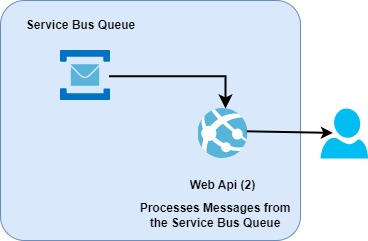
In this post, we will create a custom service to consume the messages from Azure Service Bus queue in ASP.NET Core Web API and send an email to the end user using the MailService
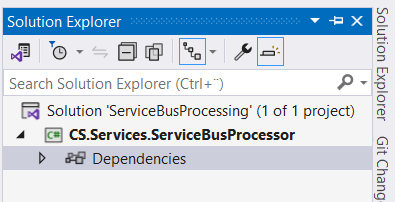
1. Open Visual Studio and create a new solution named ServiceBusProcessing.
2. Add a new class library project to the solution named CS.Services.ServiceBusProcessor.
3. Select .NET 6.0 as the version of the Framework to use and click the Create button.
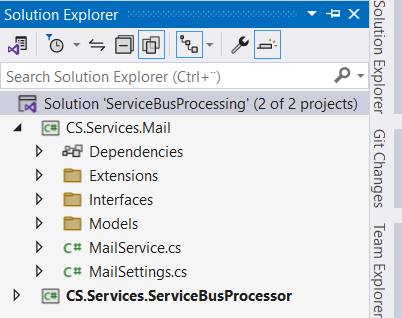
4. Add the CS.Services.Mail project we created in the previous post Using Azure Service Bus Queues with Azure Functions to the solution.
5. In Solution Explorer, right-click the CS.Services.ServiceBusProcessor project’s Dependencies node, and select Add Project Reference and in the Reference Manager dialog, select the CS.Services.Mail project, and select OK.
6. Install the following NuGet packages
Azure.Messaging.ServiceBusMicrosoft.Extensions.Logging
Azure.Messaging.ServiceBus is the Azure Software Development Kit (SDK) for ServiceBus that enables you to interact with Azure ServiceBus.
7. Create a new project folder named Models, and add a class file named Appointment.
namespace CS.Services.ServiceBusProcessor.Models
{
    public class Appointment
    {
        public int AppointmentId { get; set; }
        public int PatientId { get; set; }
        public string PatientFirstName { get; set; }
        public string PatientLastName { get; set; }
        public string DoctorFirstName { get; set; }
        public string DoctorLastName { get; set; }
        public string PatientEmail { get; set; }
        public DateTime AppointmentStart { get; set; }
        public DateTime AppointmentEnd { get; set; }
        public string Description { get; set; }
    }
}
8. Create a new class file named ServiceBusSetting that contains the queue name and the serviceBus connection string we created in the previous post (see below).
namespace CS.Services.ServiceBusProcessor
{
    public class ServiceBusSettings
    {
        public string ConnectionString { get; set; }
        public string QueueName { get; set; }
    }
}
9. Create a new project folder named Interfaces and add an interface file named ICSServiceBusProcessor (see below).
namespace CS.Services.ServiceBusProcessor.Interfaces
{
    public interface ICSServiceBusProcessor
    {
        Task ProcessMessageAsync();
        ValueTask DisposeAsync();
    }
}
Our interface contains two asynchronous methods, one for message processing and one for resource cleanup.
10. Add a new class file to the project called CSServiceBusProcessor that implements the ICSServiceBusProcessor interface, as shown in the following code.
namespace CS.Services.ServiceBusProcessor
{
    public class CSServiceBusProcessor : ICSServiceBusProcessor
    {
        private readonly ServiceBusClient serviceBusClient;
        private Azure.Messaging.ServiceBus.ServiceBusProcessor serviceBusProcessor;
        private readonly IMailService mailService;
        private readonly ServiceBusSettings serviceBusSettings;
        private readonly ILogger logger;
        public CSServiceBusProcessor(
            IMailService mailService,
            ServiceBusSettings serviceBusSettings,
            ILogger<ServiceBusReceiver> logger)
        {
            this.serviceBusSettings = serviceBusSettings;
            this.mailService = mailService;
            this.logger = logger;
            serviceBusClient = new ServiceBusClient(serviceBusSettings.ConnectionString);
        }
        public async Task ProcessMessageAsync()
        {
            var processorOptions = new ServiceBusProcessorOptions
            {
                MaxConcurrentCalls = 10,
                AutoCompleteMessages = false,
                MaxAutoLockRenewalDuration = TimeSpan.FromMinutes(5)
            };
            serviceBusProcessor =  serviceBusClient.CreateProcessor(serviceBusSettings.QueueName, processorOptions);
            // Register handlers to process messages and errors
            serviceBusProcessor.ProcessMessageAsync += MessageHandlerAsync;
            serviceBusProcessor.ProcessErrorAsync += ErrorHandlerAsync;
            await serviceBusProcessor.StartProcessingAsync().ConfigureAwait(false);
        }
        public async ValueTask DisposeAsync()
        {
            if (serviceBusProcessor != null)
            {
                await serviceBusProcessor.StopProcessingAsync().ConfigureAwait(false);
                await serviceBusProcessor.DisposeAsync().ConfigureAwait(false);
            }
            if (serviceBusClient != null)
            {
                await serviceBusClient.DisposeAsync().ConfigureAwait(false);
            }
        }
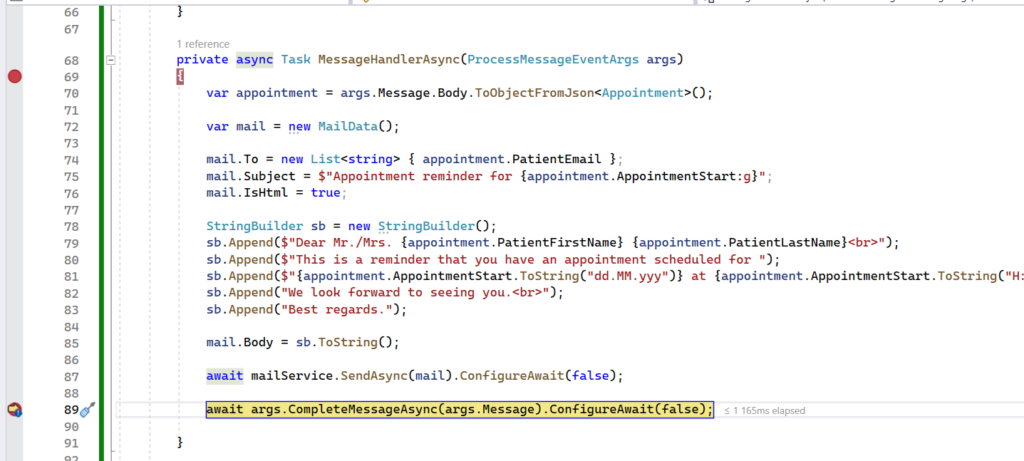
        private async Task MessageHandlerAsync(ProcessMessageEventArgs args)
        {
            var appointment = args.Message.Body.ToObjectFromJson<Appointment>();
            var mail = new MailData();
            mail.To = new List<string> { appointment.PatientEmail };
            mail.Subject = $"Appointment reminder for {appointment.AppointmentStart:g}";
            mail.IsHtml = true;
            StringBuilder sb = new StringBuilder();
            sb.Append($"Dear Mr./Mrs. {appointment.PatientFirstName} {appointment.PatientLastName}<br>");
            sb.Append($"This is a reminder that you have an appointment scheduled for ");
            sb.Append($"{appointment.AppointmentStart.ToString("dd.MM.yyy")} at {appointment.AppointmentStart.ToString("H:mm")}<br>");
            sb.Append("We look forward to seeing you.<br>");
            sb.Append("Best regards.");
            mail.Body = sb.ToString();
            await mailService.SendAsync(mail).ConfigureAwait(false);
            // Mark the message as completed
            await args.CompleteMessageAsync(args.Message).ConfigureAwait(false);
        }
        private Task ErrorHandlerAsync(ProcessErrorEventArgs arg)
        {
            logger.LogError(arg.Exception, "Message handler encountered an exception");
            // Or use you own Logging service
            return Task.CompletedTask;
        }
    }
}
The CSServiceBusProcessor class uses Dependecy Injection to get three instances of MailService , which sends the email using SendAsync , ServiceBusSettings, which contains the queue settings for the service bus and ILogger , and ServiceBusClient initialized.
ProcessMessageAsyn is responsible for registering handlers for message and error processing and for starting process messages.
We use the ServiceBusClient to create an instance of the ServiceBusProcessor, which provides the ability to process messages using the event handlers.
The ServiceBusProcessorOptions specify a set of options when creating a ServiceBusProcessor instance as shown in the following code snippet.
var processorOptions = new ServiceBusProcessorOptions
{
    MaxConcurrentCalls = 10,
    AutoCompleteMessages = false,
    MaxAutoLockRenewalDuration = TimeSpan.FromMinutes(5)
};
MaxConcurrentCalls : Controls how many messages are processed simultaneously. You can determine the appropriate number of concurrent threads for your scenario by testing.
AutoCompleteMessages : If this option is set to false, you are responsible to complete, abandon, defer or dead-letter the message.
MaxAutoLockRenewalDuration : We set this property to five minutes, which renews the message lock for up to 5 minutes to prevent the message from becoming visible again in the queue while it is being processed.
DisposeAsync is responsible for stopping processing and cleaning up resources used by ServiceBusProcessor and ServiceClient .
11. Create a folder project named Extensions, and add a new class file named CSServiceBusProcessorExtensions that contains an extension method AddCSServiceBusProcessor that will inject our CSServiceBusProcessor service with configuration settings into the intended application that will utilize it, as shown in the following code.
namespace CS.Services.ServiceBusProcessor.Extensions
{
    public static class CSServiceBusProcessorExtensions
    {
        public static IServiceCollection AddCSServiceBusProcessor(this IServiceCollection services, Action<ServiceBusSettings> configureSettings)
        {
            return services.AddSingleton<ICSServiceBusProcessor>(serviceProvider =>
            {
                var settings = new ServiceBusSettings();
                configureSettings(settings);
                return ActivatorUtilities.CreateInstance<CSServiceBusProcessor>(serviceProvider, settings);
            });
        }
    }
}
Creating ASP.NET Core Web API that receives messages from the Service Bus Queue
1. Right-click the solution and add a new ASP.NET Core 6 Web API with name CS.ReceivingApiApp.
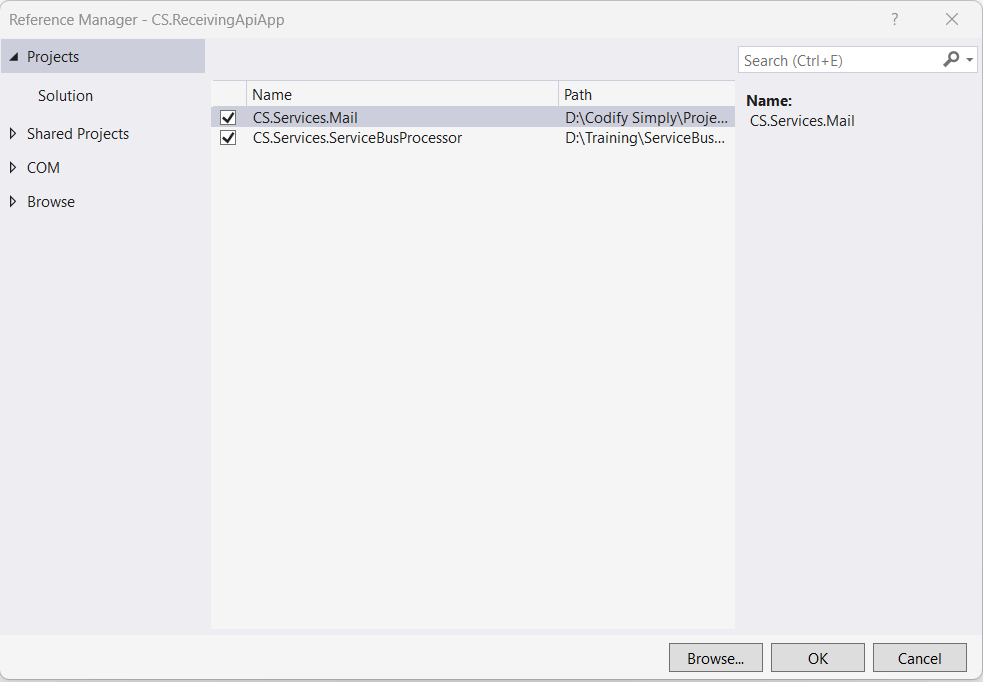
2. In Solution Explorer, right-click the CS.ReceivingApiApp project’s Dependencies node, and select Add Project Reference and in the Reference Manager dialog, select the CS.Services.ServiceBusProcessor and CS.Services.Mail projects, and select OK.
3. Add the primary connection string of Azure Service Bus queue with ListenerPolicy and Smtp settings to appsettings.json as shown below.
{
  "QueueName": "csblog-email-queue",
  "ServiceBusQueueConnectionString": "YOUR CONNECTION STRINF WITH LISTEN POLICY",
  "SmtpServer": "smtp.gmail.com",
  "SmtpPort": 587,
  "SmtpUser": "YOUR SMTP USER",
  "SmtpPassword": "YOUR SMTP PASSWORD",
  "From": "YOUR EMAIL ADDRESS"
}
4. In the Program.cs file, add the following code to register the MailService and CSServiceBusQueueProcessor services in the Dependency Injection container.
builder.Services.AddCSServiceBusProcessor(settings =>
{
    settings.QueueName = builder.Configuration.GetValue<string>("QueueName");
    settings.ConnectionString = builder.Configuration.GetValue<string>("ServicBusConnectionString");
});
builder.Services.AddMailService(settings =>
{
    settings.SmtpServer = builder.Configuration.GetValue<string>("SmtpServer");
    settings.SmtpPort = builder.Configuration.GetValue<int>("SmtpPort");
    settings.SmtpUser = builder.Configuration.GetValue<string>("SmtpUser"); ;
    settings.SmtpPassword = builder.Configuration.GetValue<string>("SmtpPassword"); ;
    settings.From = builder.Configuration.GetValue<string>("From");
});
5. In the Program.cs file, add the following code to start processing messages.
var serviceBusProcessor = app.Services.GetService<ICSServiceBusProcessor>();
serviceBusProcessor.ProcessMessageAsync().GetAwaiter().GetResult();
app.Run();
Run the historical demo
1. In Solution Explorer, right-click the CS.ReceivingApiApp project, and select Set as Startup Project, and click F5 to run the application.
2. In the previous post, we created a solution for sending messages to the Azure Service Bus Queue, which you can read here Using Azure Service Bus Queues with Azure Functions.
3. Run the application we created in the previous post to send messages to the Service Bus Queue and test by creating a batch message.
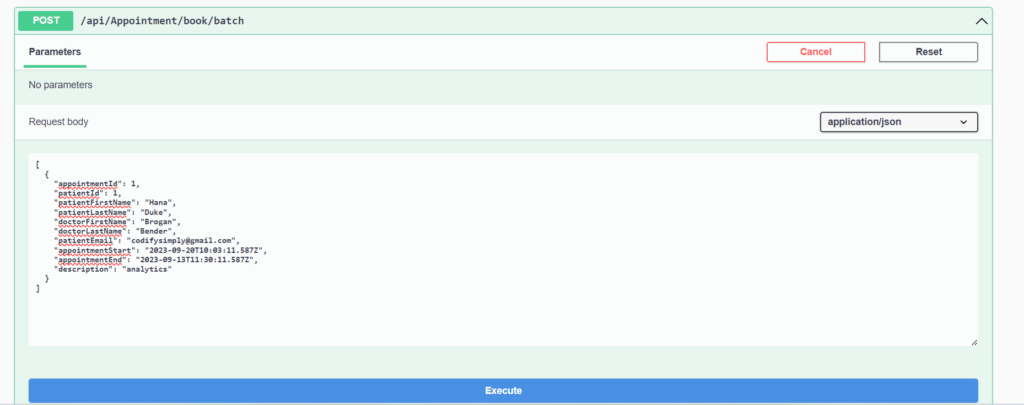
The CSServiceBusProcessor processes the message.
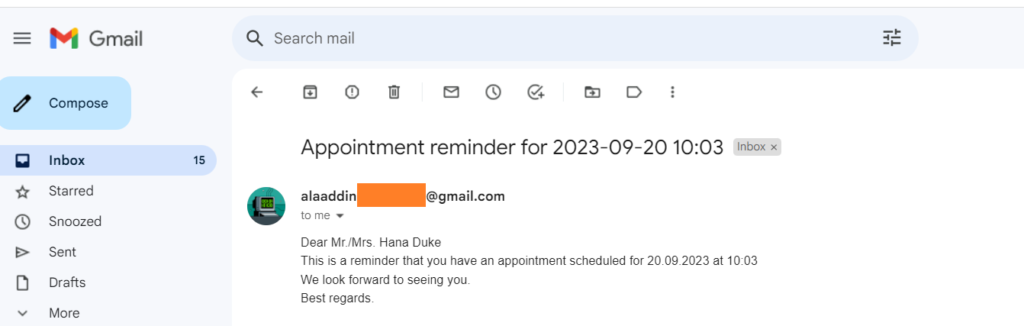
Once the message was processed, an email was sent to the user.
The code for the demo can be found Here
References
- Microsoft Learn: Use managed identities to access Azure Service Bus
- Microsoft Learn: Message transfers, locks, and settlement
- Microsoft Learn: Service Bus dead-letter queues
- Microsoft Learn: Azure Service Bus performance best practices
- Microsoft Learn: Use scoped services within a BackgroundService
- Microsoft Learn: ServiceBusProcessor API
- Historical demo source on GitHub
Found this useful? Support more practical developer content.